 IP
IP
Most people are used to logging into their ASUS router through a web browser on a computer—by entering the default address like http://192.168.1.1 or http://router.asus.com—to set up Wi-Fi. But you don’t have to use a browser. You can also set up your ASUS router right from your phone using the ASUS Router app. It’s more visual, easier to follow, and generally quicker than the traditional web login method. Below is a step-by-step guide to help you set up Wi-Fi using the ASUS Router app.
How to Set Up WiFi Using ASUS Router App
1. Plug the Ethernet cable from your ISP into the router’s WAN port. Then connect the power adapter and turn the router on.

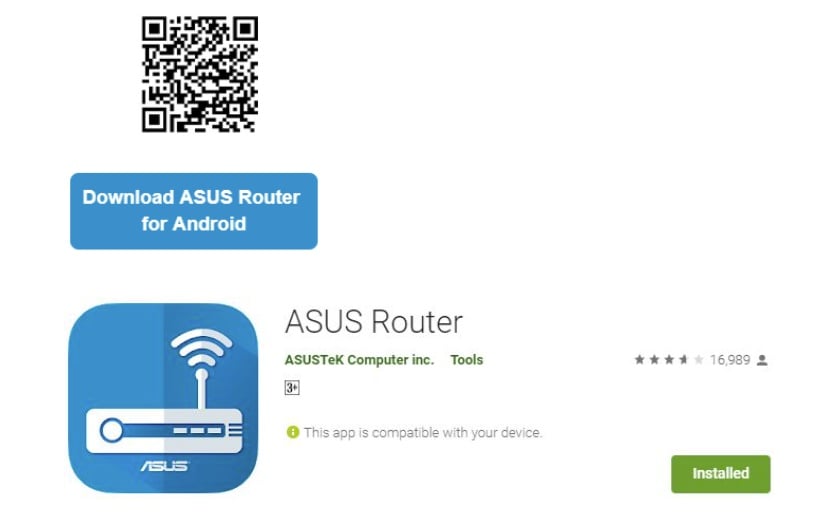
2. On your phone, go to the App Store (iOS) or Google Play, search for ASUS Router, and install the app. You can also scan the QR code below to download it directly. Learn more: Common WiFi Router Management Apps List
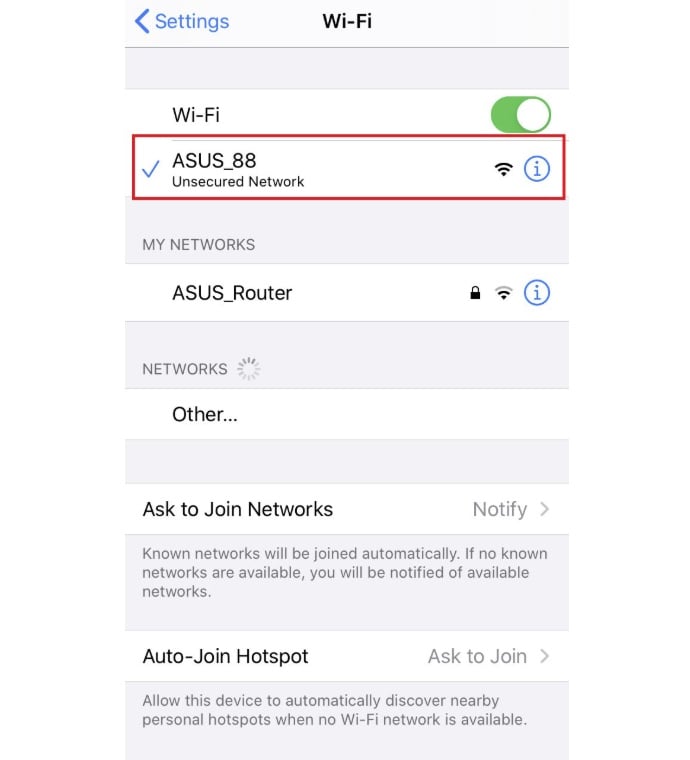
3. Turn on Wi-Fi on your phone and connect to your ASUS router’s default network (SSID), usually something like ASUS_XX. You can find the exact network name on the label on the back of the router.
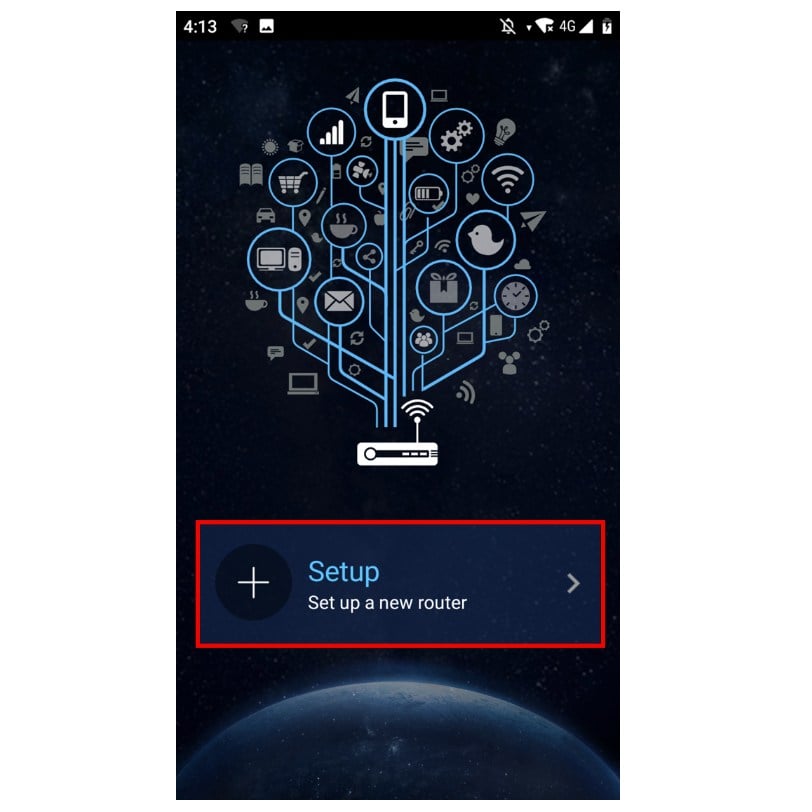
4. Open the ASUS Router app and tap “Setup” on the main screen.
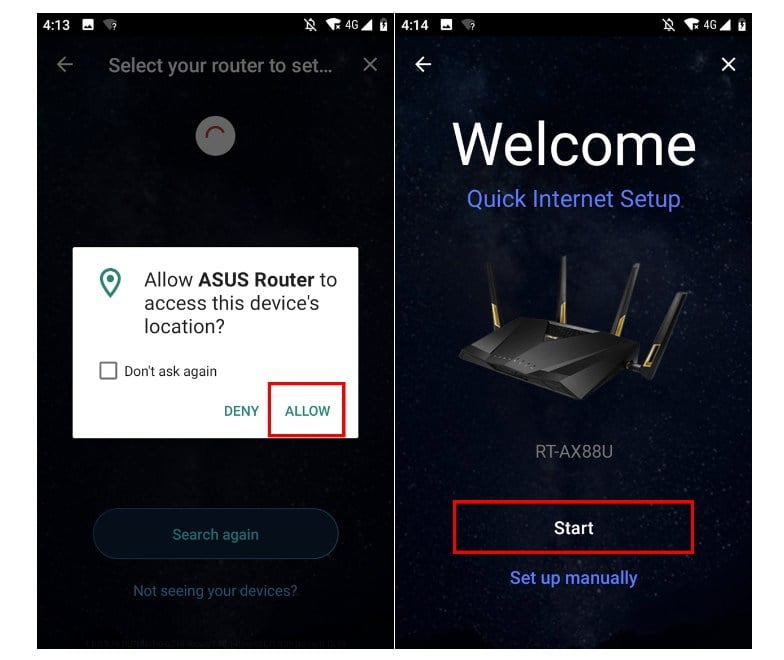
5. Select your ASUS router from the list of detected devices.

6. Tap “Allow” to grant location access, then tap “Start” to proceed with the setup.
7. The system will automatically detect your internet connection type (such as DHCP or PPPoE). If PPPoE is detected, enter the username and password provided by your ISP, then tap “Next”.

8. Enter the network name (SSID) and password, then tap “Next”. If you prefer, you can enable “Separate 2.4GHz and 5GHz” to assign different names and passwords to each.

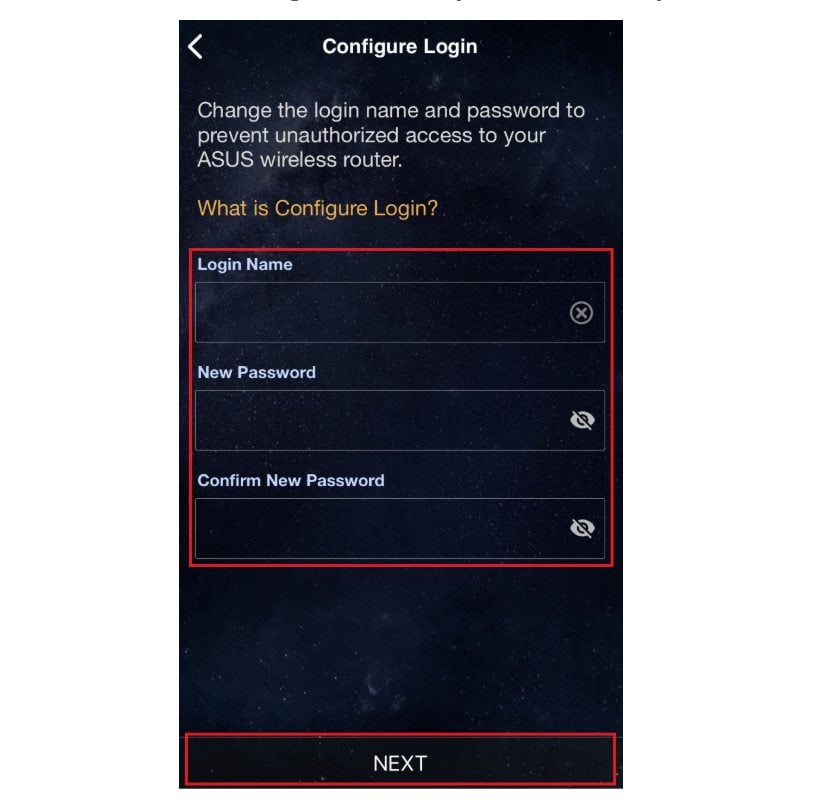
9. Create a login name and password. This login information will be used to access the router’s configuration page, so make sure to save it somewhere safe. Learn more: How to Change ASUS Router Password
10. After you complete the setup and open the home screen, you’ll see an option for remote connection. Choose “OK” to enable remote connection or “Cancel” to skip it. When the home screen appears, your ASUS router setup is complete and your Wi-Fi network is ready to use.


