 IP
IP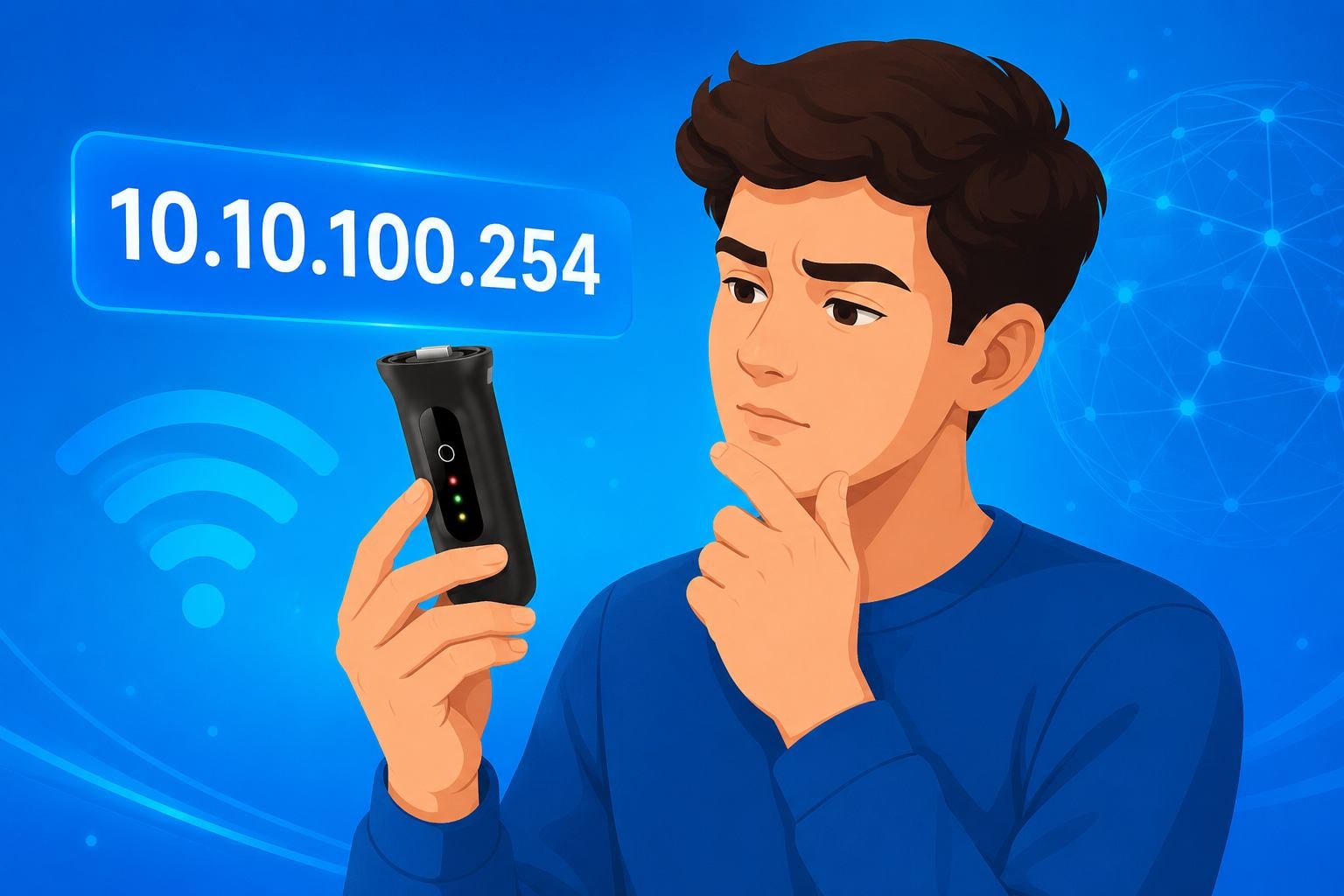
When setting up a solar inverter WiFi datalogger — often called a WiFi Stick or Datalogger — 10.10.100.254 is the default admin IP address used by many major brands, including Growatt, SOFARSOLAR, Solis, and Deye.
By accessing the 10.10.100.254 login page, you can open the WiFi stick’s local web interface to configure WiFi settings, connect the inverter to the internet, and link the system to a solar monitoring platform.
If you’re installing a solar power system for the first time, replacing your router, or reconnecting a WiFi stick after a network outage, you’ll usually need to log back into the 10.10.100.254 setup page to reconfigure the network connection.
How to Log Into 10.10.100.254 and Configure Your WiFi Stick
1. Plug the WiFi stick into the communication port on your solar inverter, then make sure the inverter is powered on properly. Once the system starts up, the WiFi stick’s power indicator should turn on.
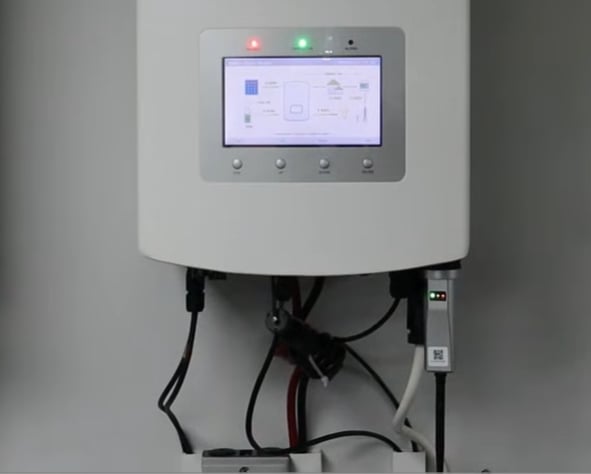
2. On your phone or computer, open the WiFi settings and connect to the wireless hotspot broadcast by the data logger. The network name (SSID) is usually something like AP_XXXXXX, SOLIS_XXXX, or WiFi_XXXX.
The default WiFi password is typically printed on the label attached to the WiFi stick and may be labeled as Password or Key. If the label is damaged or unreadable, try common default passwords such as 12345678 or 123456789. Some models do not require a password for the initial connection.

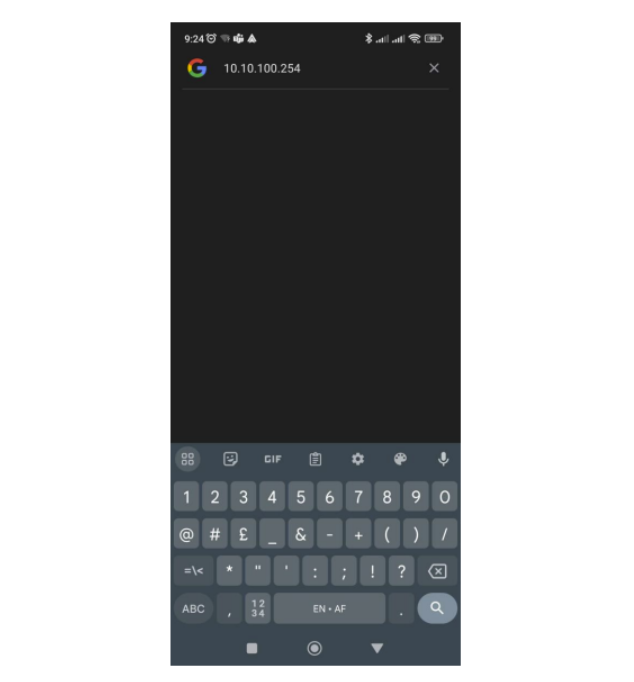
3. Once connected, open Chrome, Safari, Edge, or your phone’s web browser. In the browser’s address bar, enter 10.10.100.254 or the full address http://10.10.100.254, then go to the WiFi stick login page.
Be sure to enter the address into the browser’s address bar, not the search box. Also double-check the IP address carefully to avoid typos such as 10.10.100.254., 10.10.10.254, www.10.10.100.254, 10.10.100.254.com, http//10.10.100.254, or http:10.10.100.254.
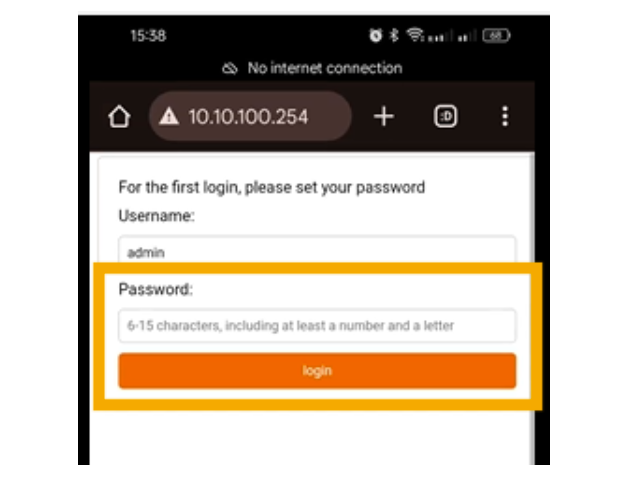
4. On the login screen, enter the default username and password. Many WiFi sticks use admin for both the username and password, while some devices may use 12345678 as the default password instead. The correct login credentials are usually printed on the device label.
Some newer data logging sticks may prompt you to create a new admin password during the initial setup for added security.
5. After logging into the data logger admin dashboard, look for options such as Wizard, Quick Set, or Network Configuration. The system will automatically scan for nearby wireless networks.
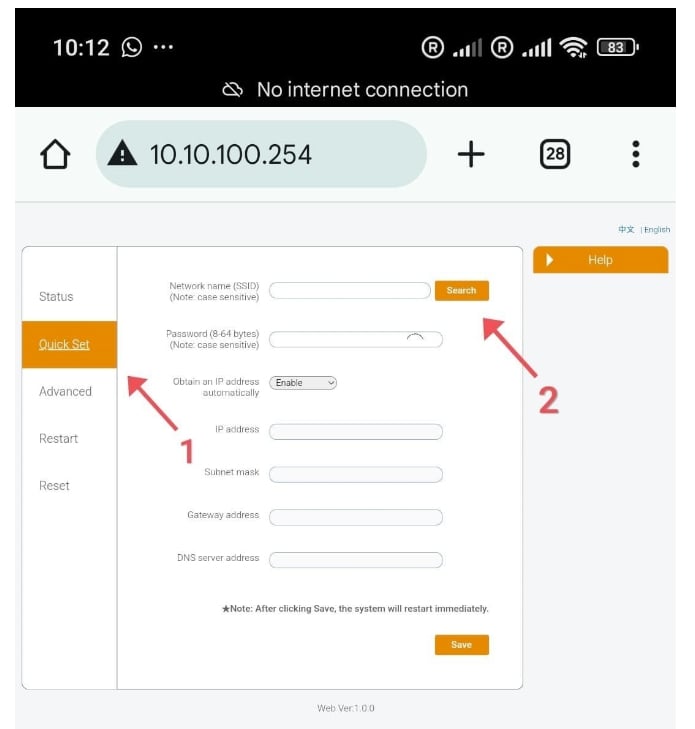
6. From the scanned SSID list, select your home router’s WiFi network name. Then enter your WiFi password carefully in the password field and click Save.
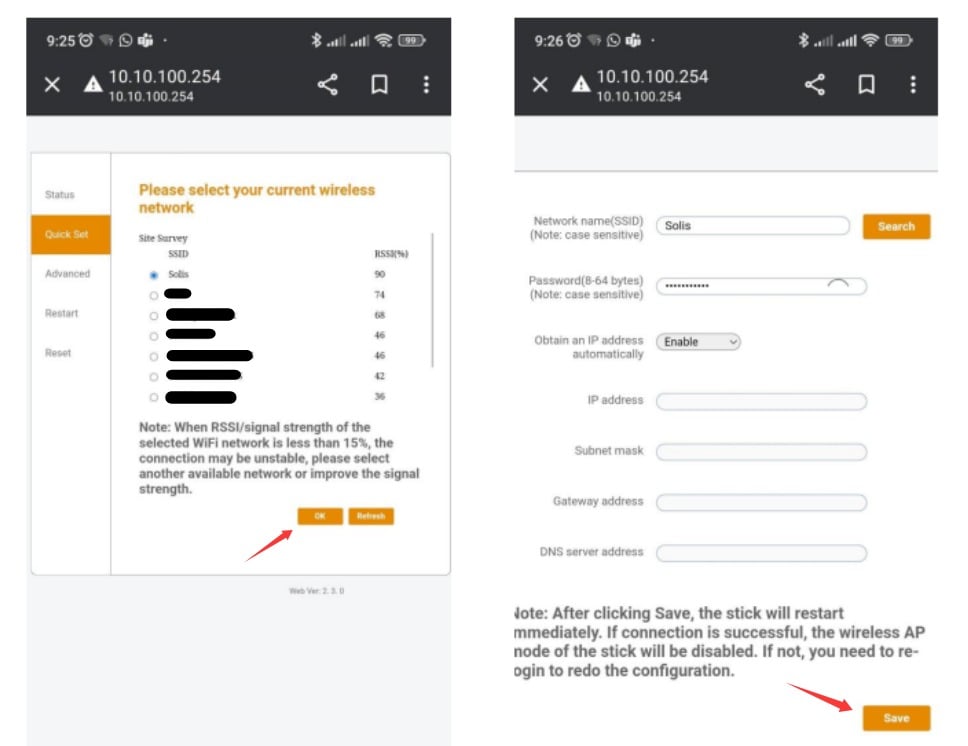
7. Wait a few seconds while the WiFi stick automatically connects to your router. Once connected, the inverter will start sending data to the solar monitoring platform, and the setup will be complete.


