 IP
IP
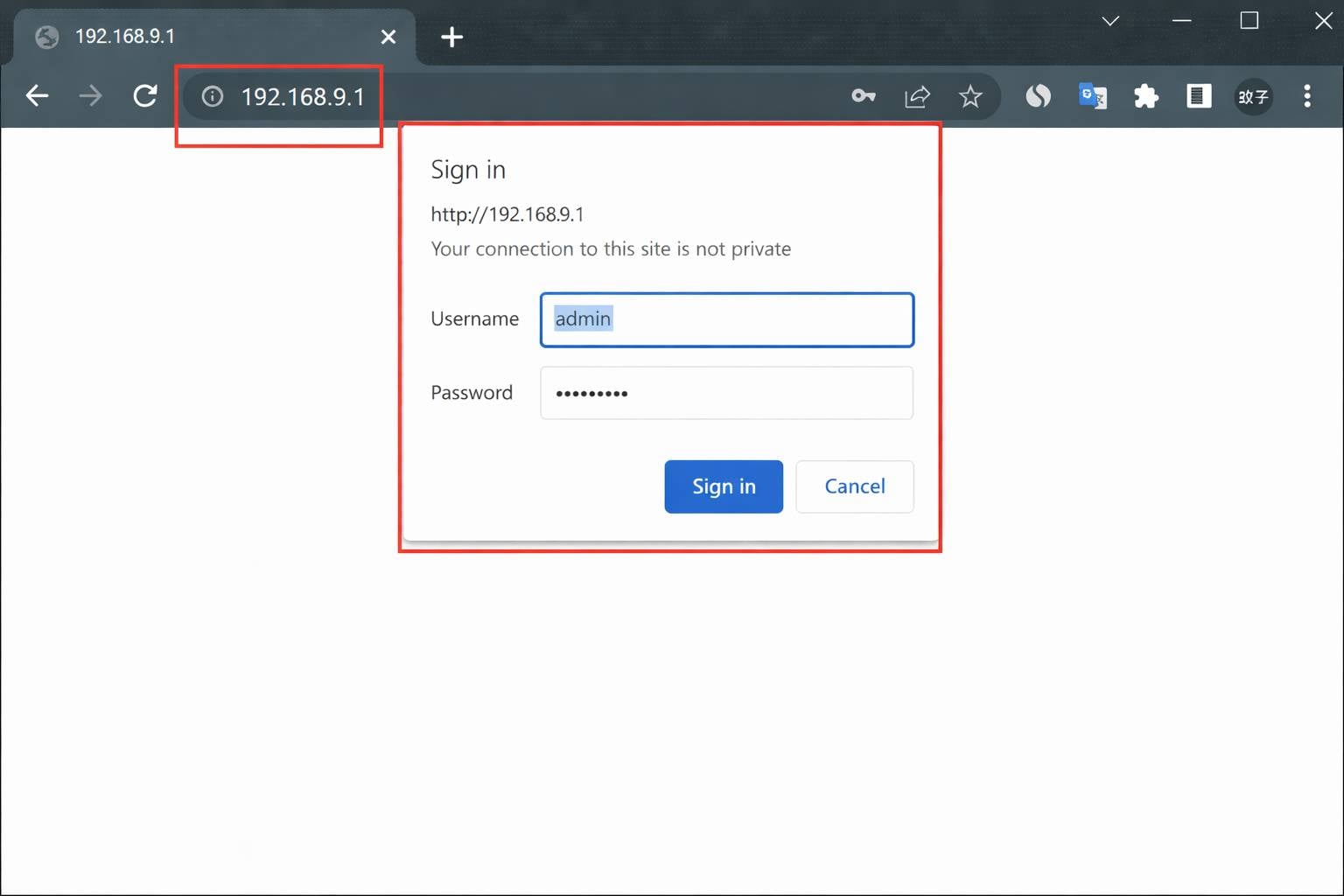
If the gateway address shown in your phone or computer’s network details is 192.168.9.1, you can open http://192.168.9.1 in a web browser to access the device’s admin panel and manage your network settings. Once the login page appears, follow the guidance below if you are unsure of the admin username or password, or if you need to reset the login credentials.
What Devices Use 192.168.9.1?
Unlike common router login addresses such as 192.168.1.1, the IP address 192.168.9.1 is not widely used as a universal home router gateway. Instead, it is typically found on the following types of devices:
1. Certain wireless router models
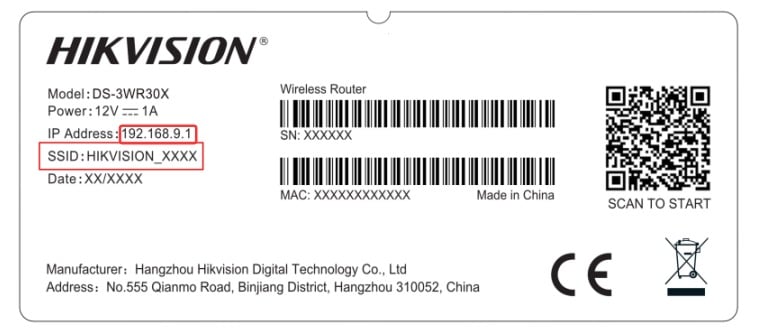
Some Hikvision routers (including selected AX-series models) ship with 192.168.9.1 as the default admin address and may also allow login through the domain hikrouter.net.
2. Carrier-branded mobile broadband devices
Some USB data modems, portable Wi-Fi hotspots, and carrier-customized mobile broadband routers (including selected firmware versions from Huawei, ZTE, and Vodafone) use 192.168.9.1 as their default management address.
3. 4G LTE portable Wi-Fi and SIM-based CPE routers
Many 4G LTE hotspots and SIM-card CPE routers use the LAN subnet 192.168.9.0/24 by default, where 192.168.9.1 functions as the admin gateway.
4. Guest network gateway address
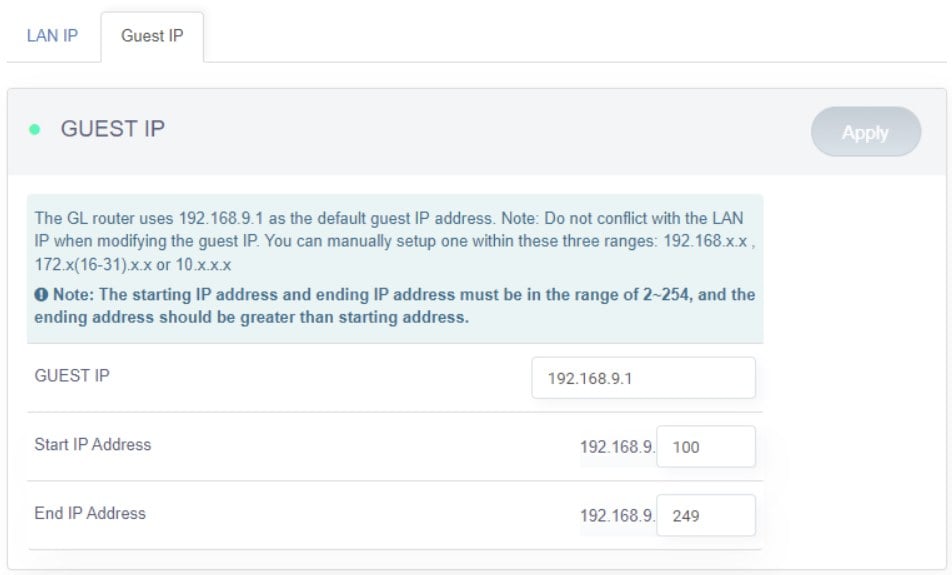
On some routers (such as certain GL.iNet devices), 192.168.9.1 may be assigned to the guest network gateway rather than the primary router login address.
192.168.9.1 Default Username and Password
Default login credentials vary depending on the device. In most cases, the Login IP, Username, and Password are printed on a label located on the back or bottom of the router or portable Wi-Fi device.
Common default login credentials include:
- Username: admin
- Password: admin
- Password: 123456
- Password: Leave blank (create a password during first login)
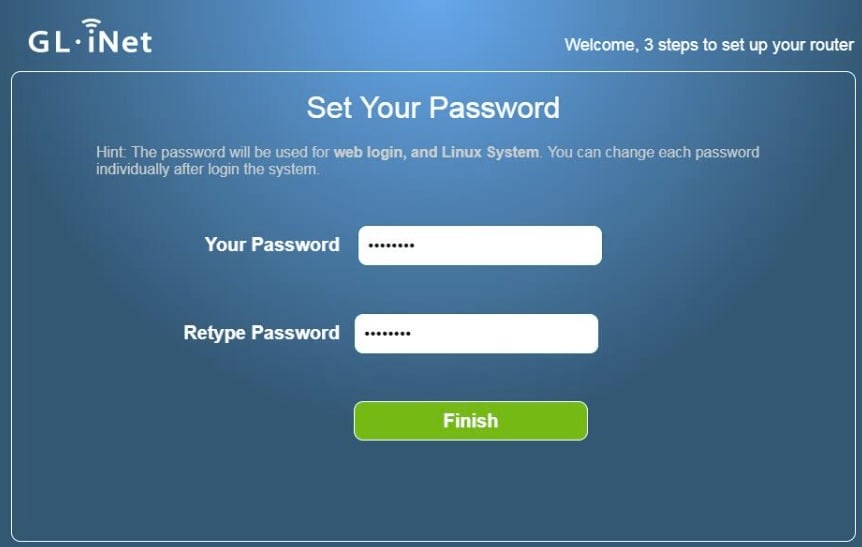
Many newer devices no longer use a shared default password and instead require you to create an administrator password during the initial setup. Be sure to save this password somewhere safe after configuration.
Forgot the Login Password? Here’s What to Do
If the default password listed on the device label does not work and you cannot remember the password you previously set, try the following methods:
Method 1: Check saved passwords
Many web browsers prompt you to save login credentials the first time you access the router admin page. Open your browser’s password manager to see whether the login information was saved. If you previously used a router app, you can also check whether the app still has your login information saved.
Method 2: Reset the device to factory settings
If you’ve completely forgotten your login password and can’t recover it, the only option is to reset your device to its factory settings and set a new login password:
- Locate the RESET (or RST) pinhole on the device
- With the device powered on, press and hold the button using a pin or paperclip for 5–10 seconds
- Wait for the indicator lights to change and the device to reboot automatically
- Reconnect to the device’s Wi-Fi network
Note: Performing a factory reset will erase all previous settings, including your Wi-Fi name, Wi-Fi password, and any internet configuration. You’ll need to use the default information printed on the device label to log in and set up a new admin password and Wi-Fi password. Therefore, only reset if it’s really necessary.


