 IP
IP
When people set up a router at home, the default gateway is usually 192.168.0.1 or 192.168.1.1. So if you suddenly see 10.1.1.1, it’s normal to wonder what it is. In fact, 10.1.1.1 is also a commonly used private LAN gateway—it's just more often found on business/office routers or ISP-customized optical modems (ONTs) made for internal network management.
Which Devices Commonly Use 10.1.1.1 for Login?
10.1.1.1 is a private IP address that can be used as a LAN default gateway, allowing devices on the local network to access the internet.
Devices that most commonly use 10.1.1.1 include certain business/office routers and some ISP-customized optical modems (ONTs).
Here’s a quick brand-and-device reference table to help you identify common matches:
| Brand / Device Type | Default Login IP | Notes |
|---|---|---|
| Cisco routers | 10.1.1.1 | Common in small business or office networks for LAN management |
| Linksys home / office routers | 10.1.1.1 | Some older Linksys models may use this IP |
| Netgear business routers | 10.1.1.1 | Often used as a default setting in office environments |
| Carrier-provided optical modems (ONTs) | 10.1.1.1 | May be set by the ISP for easier internal management |
| Enterprise switches / firewall appliances | 10.1.1.1 | Many enterprise networks use 10.1.x.x ranges for internal gateways |
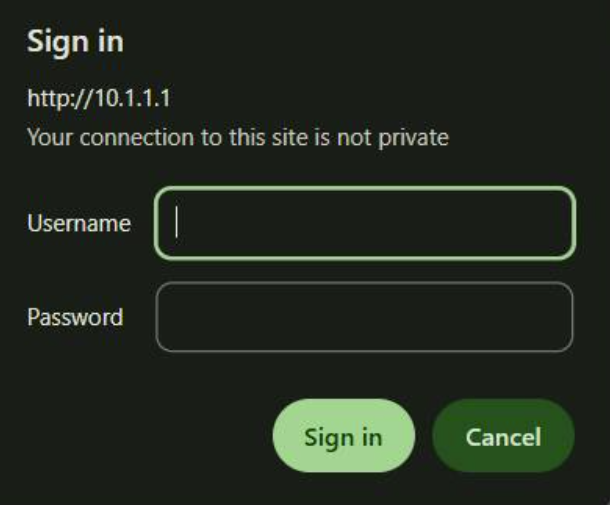
If your device label shows the login address (gateway) as 10.1.1.1, you can open a browser and type http://10.1.1.1 in the address bar to access its web admin panel.
Want to see more devices that use 10.1.1.1 as the default login IP? Click here to view the list.
10.1.1.1 Login - Default Username & Password
Default login credentials vary by brand and model, but these are some of the most common combinations:
- Username: admin; Password: admin
- Username: admin; Password: 1234
- Username: (blank); Password: admin
Keep these tips in mind when signing in:
- Usernames and passwords are case-sensitive, so double-check capitalization and spelling.
- Switch your keyboard/input method to English to avoid typing the wrong symbols or characters.
- If it’s an ISP-provided optical modem (ONT), the correct username and password are often printed on the label on the back/bottom of the device or included in the manual.

10.1.1.1 Login Password Wrong? Try These Fixes
If you see an “incorrect password” message after signing in, try the following steps:
1. Make sure case and spelling are correct. Switch your input method to English, and avoid common mistakes like typing Admin instead of admin, or guessing passwords like 12345.
2. Try the default credentials. You can test the common combinations listed above.
3. Some routers support a “Forgot Password” option on the login page that can help you reset or recover access—if you see it, give it a try.
4. If you truly can’t remember the password, press and hold the router’s reset button for 5–10 seconds to restore the default login. Click to learn more: How to reset a router password?

Note: A factory reset will erase your Wi-Fi name (SSID), Wi-Fi password, and other settings, so you’ll need to set up the network again.
5. If none of the above works—or if the device is an ISP-customized optical modem (ONT)—the account may be locked or managed by the provider. In that case, contact the manufacturer or your ISP for help restoring access or resetting the password.


