IP
IP
Logging into the router management interface at 192.168.1.1 via your phone is a common way to set up your network, change your Wi-Fi password, or optimize security features. This article will teach you how to quickly access your wireless router's backend using your phone. It only takes three simple steps to solve the 192.168.1.1 login issue!
Steps to Log in to 192.168.1.1 on Your Phone
Step 1: Connect to Your Home Wi-Fi
Open your phone's Settings, go to the WLAN or Wi-Fi section, and find the "Wireless Network" or "WLAN" option to turn it on. Then, locate your router's Wi-Fi name (SSID) in the list of available networks and tap to connect. If this is your first time connecting, no password is usually required. If a password has already been set, enter the current Wi-Fi password.
Note: To prevent your phone from automatically switching to mobile data, it's recommended to temporarily disable the data function.
Step 2: Enter the Management Address
Open your phone's browser (Chrome/Safari/or default browser) and type 192.168.1.1 directly into the address bar (not the search box!). Tap "Go" (Android) or "go" (iOS), and the browser will attempt to connect to the wireless router's management interface.
Note: If the page doesn't load, first check if you accidentally typed www.192.168.1.1 (don't add www!). Alternatively, try other common addresses like 192.168.0.1. Some routers use domain names (e.g., TP-LINK uses tplogin.cn). You can find your router's login address on the label at the bottom of the router.
Step 3: Log in to the Management Interface
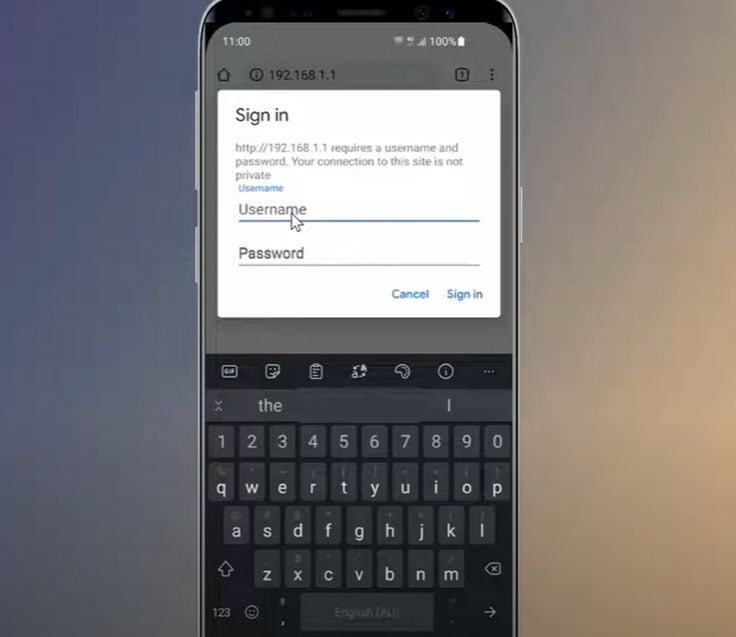
Once connected, a login page will usually pop up, prompting you to enter a username and password.
What is the default username and password for 192.168.1.1?
For most routers, the default username and password are both "admin," or the password field may be left blank. Check the label on the bottom of your router for specific details.
If you've changed the password before, enter the updated credentials.
If you've forgotten the password, click "Forgot Password" to attempt recovery (some routers support resetting via mobile SMS verification).
If recovery isn't possible, press and hold the "RESET" button on the router for about 10 seconds to restore factory settings, then log in using the default password.
After entering the correct username and password, click the "Login" button to access the wireless router's management page.
<