 IP
IP
If you see a “192.168.1.1 refused to connect” or “This site can’t be reached” error when trying to access your router’s admin page, don’t worry—it usually doesn’t mean your router is broken. In most cases, the issue is caused by basic connection or configuration problems. You can fix it by checking the common causes below.
1. Make Sure You’re Connected to the Right Network (Most Common Issue)
One of the most common reasons for the “192.168.1.1 refused to connect” error is that your device isn’t actually connected to the router.
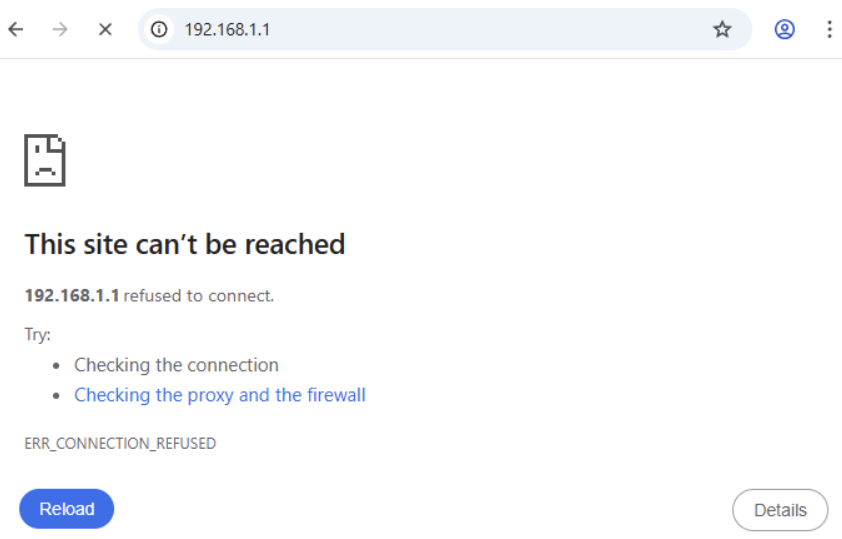
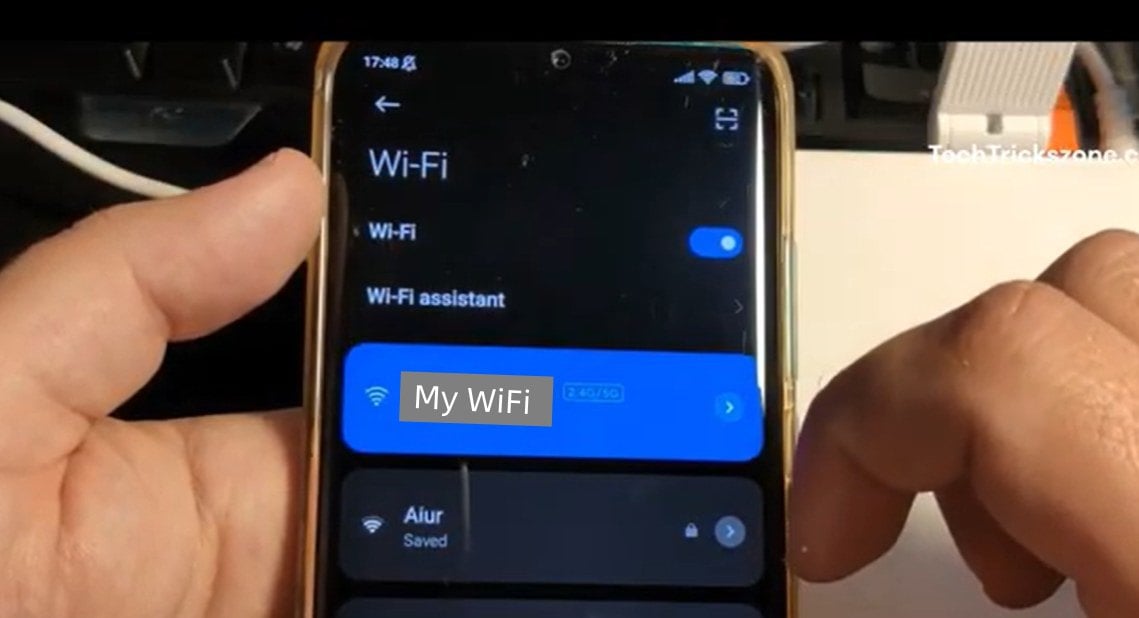
For example, your phone may have switched to mobile data (4G/5G), you might be connected to a different WiFi network (like a neighbor’s), your computer’s Ethernet cable could be plugged into a modem instead of the router, or you may have multiple routers and are connected to the wrong one.
If you’re not connected to the right WiFi network, the 192.168.1.1 login page simply won’t open. So before anything else, make sure your phone or computer is on the correct network.
Once you’re connected properly, try opening the 192.168.1.1 login page again. Learn more: 192.168.1.1 Login: How to Access the Admin Page
2. Double-Check Your Router’s IP Address (192.168.1.1 May Not Be Correct)
While 192.168.1.1 is one of the most common router IP addresses, not all routers use it for login.
Some routers use 192.168.0.1, 192.168.31.1, or a domain like tplinkwifi.net. The default login address is usually printed on the router label, but it may have been changed.
The most reliable way to find the correct address is to check the gateway in your device’s network settings. This is the actual IP address of the router you’re currently connected to.
If your router originally used 192.168.1.1 but your current gateway shows a different address (such as 192.168.0.1), trying to access 192.168.1.1 will result in a “This site can’t be reached - 192.168.1.1 refused to connect” error.

3. Make Sure Your Device Is Getting a Valid IP Address
If your internet connection is working and you’re using the correct router IP, but you still see the “refused to connect” message, the problem is likely related to your device’s network status.
Accessing the router admin page depends on whether your device has been assigned a valid local IP address.
Under normal conditions, your device should have an IP address like 192.168.1.x, and the default gateway should match your router’s IP (for example, 192.168.1.1).
If you notice any of the following, the 192.168.1.1 login page may not open:
- Your IP address shows as 0.0.0.0
- The default gateway is missing
- The gateway does not match the address you entered
In this case, try turning Wi-Fi off and back on your phone, or simply toggle Airplane mode to refresh the connection. On a computer, disconnect from the network and reconnect again.
After reconnecting, you should be able to access the 192.168.1.1 login page normally.


