 IP
IP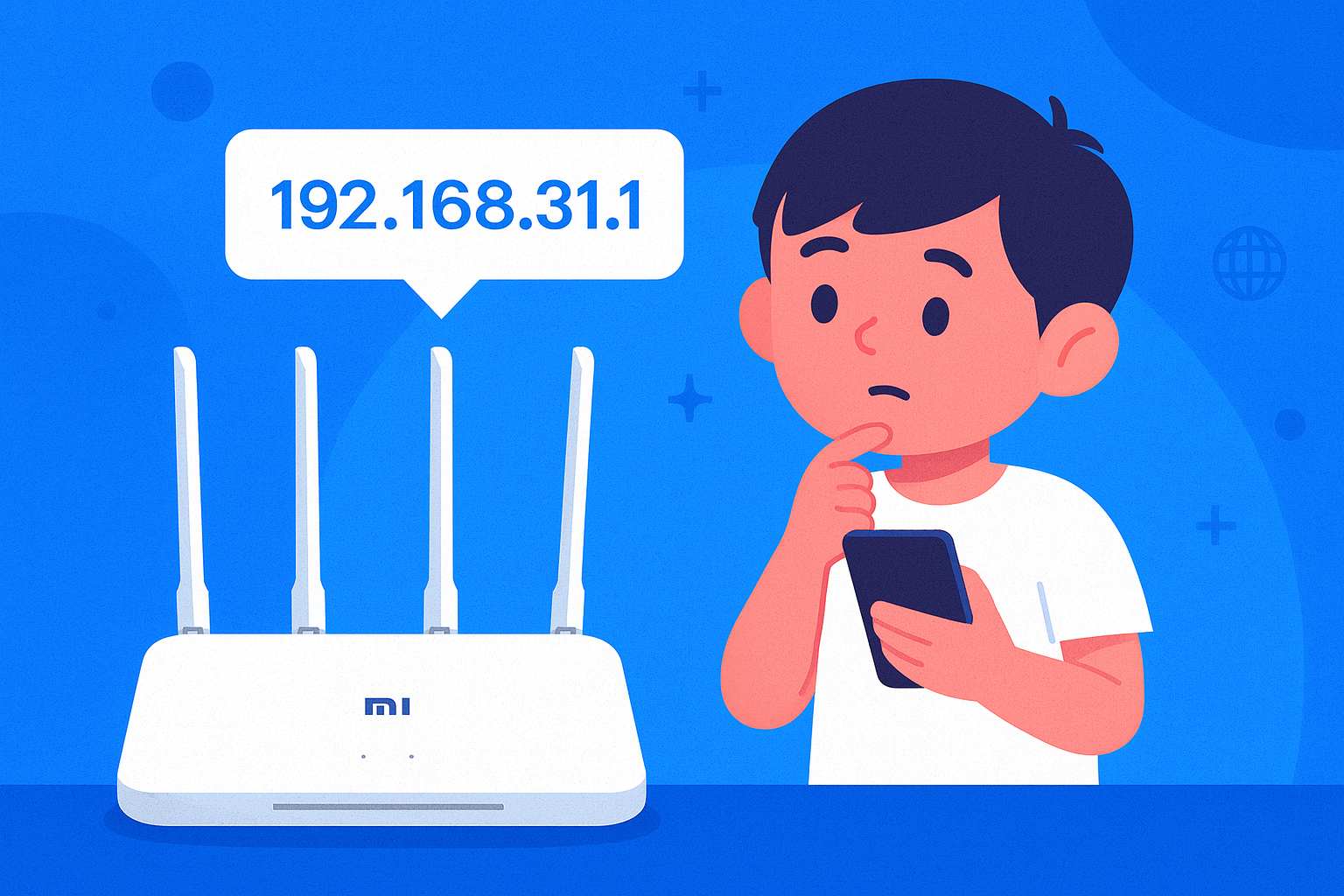
Many Xiaomi and Redmi routers use 192.168.31.1 as their admin login page. Once you’re in, you can easily change your Wi-Fi name and password, or manage connected devices. You can do this from either your computer or smartphone—here’s a step-by-step guide for both.
192.168.31.1 Login via Smartphone
If you just want to change your Wi-Fi password or check which devices are connected, using your phone is the quickest way.
Here’s how to access 192.168.31.1 from your smartphone:
1. Go to your phone’s Settings → WLAN and connect to your home router’s Wi-Fi.
2. Open a browser and enter http://192.168.31.1 in the address bar, then tap “Go.”
3. Agree to the service agreement, and you’ll usually be automatically redirected to the mobile login page.
If you see a “Switch to Desktop Version” prompt, or need more advanced settings, tap the three dots in the browser and select “Desktop Site” to view the full interface.

4. Enter your router’s admin password in the login popup and tap “Login.” If this is your first time, the default password is usually printed on the router’s label; if you’ve changed it before, use the updated password.
5. Optional: You can also download the MiWiFi App to manage your router. Once logged in, you can manage your router with a single tap without entering the IP every time.

192.168.31.1 Login via Computer
For advanced tasks like port forwarding or setting up bridge mode, a computer is more convenient.
Here’s how to log in to 192.168.31.1 from a computer:
1. Connect your computer to the router via Ethernet cable, or connect to its Wi-Fi network.
2. Open a browser (Edge, Chrome, or Firefox recommended) and type http://192.168.31.1 in the address bar, then press Enter.
3. Agree to the service agreement, and the login page will appear.
4. Enter the admin username and password. For first-time use, the credentials are usually on the label at the back of the router. If you’ve changed them, enter your updated password and click “Login.”


