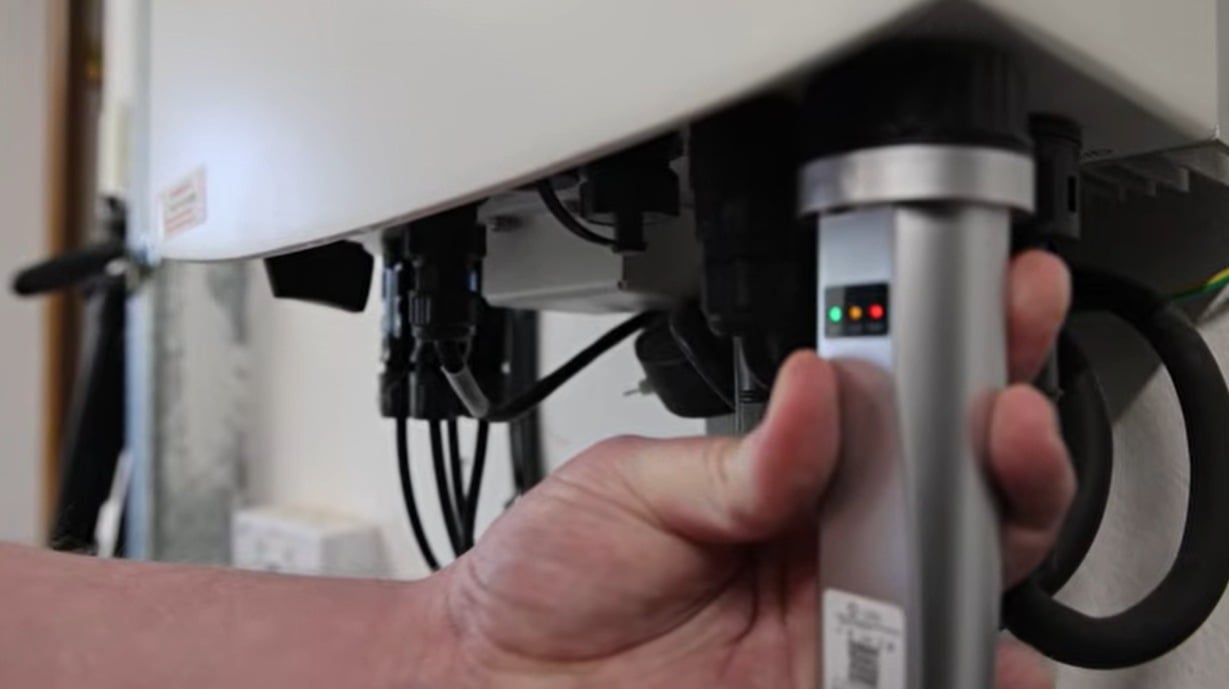
IP
IP
10.10.100.254 is the default local admin IP address used by many solar inverter WiFi sticks and data loggers.
Have you run into this problem before? Your solar WiFi stick is installed correctly, your phone is connected to WiFi, but when you enter 10.10.100.254 in the browser, the WiFi stick login page simply won’t open.
Sometimes the page keeps loading endlessly. Other times, you may see errors such as “This site can’t be reached” or “ERR_CONNECTION_REFUSED.” In some cases, the browser may even redirect you to a search results page instead of the 10.10.100.254 login page.
Don’t worry — your WiFi data logger is probably not broken. In most cases, the problem is caused by incorrect network settings or a missed setup step.
This troubleshooting guide will help you fix the most common 10.10.100.254 WiFi stick login problems and restore access to your solar inverter data logger.
Why the 10.10.100.254 WiFi Stick Login Page Is Not Working
If you can’t access the 10.10.100.254 WiFi stick login page, one of the following issues is usually responsible:
1. Your phone or computer is connected to the wrong WiFi network
Many users assume they can access the solar inverter data logger page while connected to their home router’s WiFi network, but that’s not how the WiFi stick works.
To access the 10.10.100.254 WiFi stick admin page, your phone or computer must connect directly to the AP hotspot broadcast by the solar WiFi stick itself.
Common hotspot SSID formats include WiFi_XXXX, Solis_XXXXXX for Solis devices, and Deye_XXXX for Deye models. The “XXXX” suffix is usually part of the device serial number (SN).
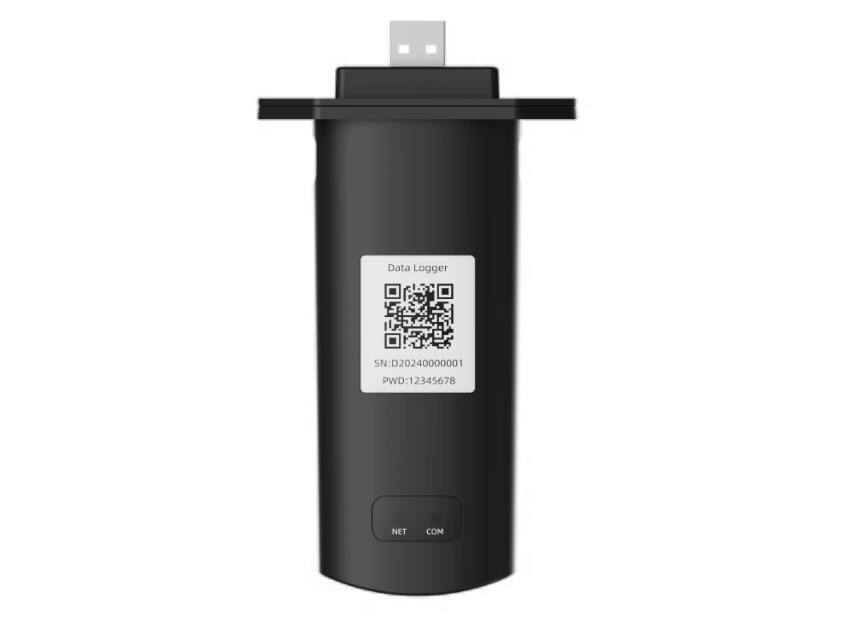
If you’re not sure which hotspot to connect to, check the label on the front or side of the data logger. The label usually includes a QR code, device serial number, default hotspot name, and the default WiFi password.
You can only open the 10.10.100.254 login page after successfully connecting to the WiFi stick hotspot.
2. The 10.10.100.254 IP address was entered incorrectly
If you’re already connected to the WiFi stick hotspot but still can’t open the 10.10.100.254 login page, carefully check the IP address you entered:
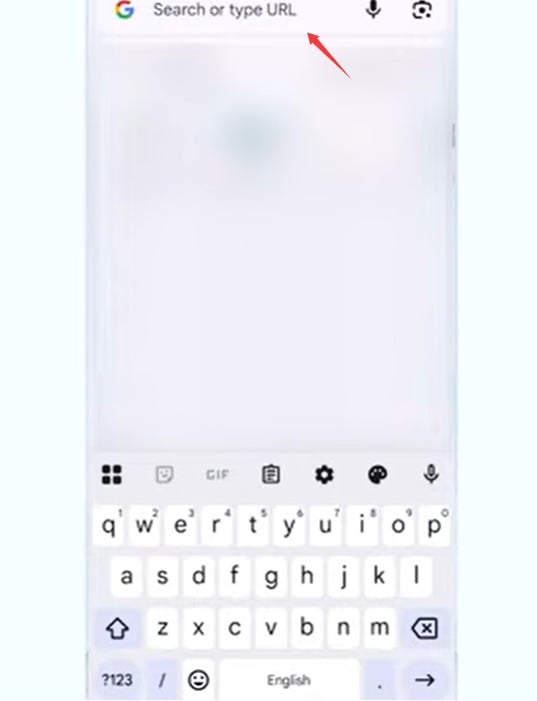
- Make sure the address was entered in the browser’s address bar, not the search box. On phones, the address bar is usually located at the top or bottom of the browser screen. On desktop browsers, it’s typically at the top. If you accidentally enter 10.10.100.254 into Google, Bing, or another search engine, the browser will treat it as a search query instead of opening the WiFi stick login page.
- Check for typing or formatting mistakes in the IP address. Extra spaces, missing digits, or incorrect formats such as 10.10.100.254/, 10.10.100.25, 10.10 l00 254, 10.10 100.254, or Http 10 10.100 254 can all prevent the 10.10.100.254 web login page from loading properly.
3. The browser automatically switches to HTTPS
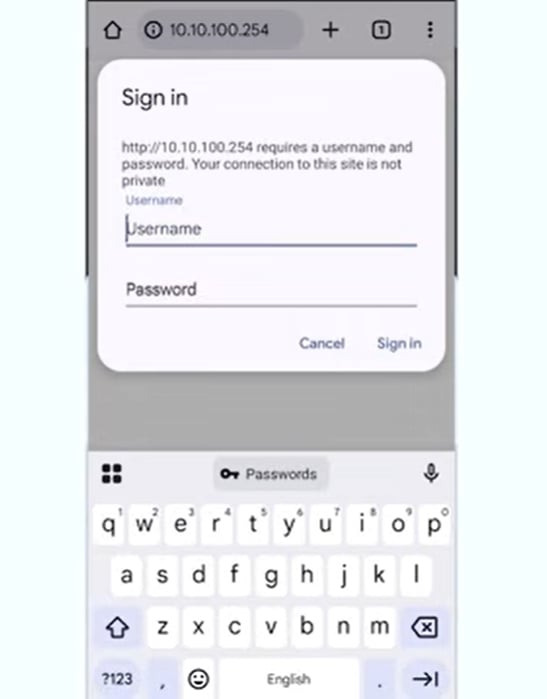
Some browsers automatically change the address to https://10.10.100.254. However, many solar WiFi sticks only support the standard HTTP protocol, which may prevent the 10.10.100.254 login page from opening correctly.
Try manually entering: http://10.10.100.254. It’s also recommended to use Chrome or Safari whenever possible to avoid browser compatibility issues.
4. Mobile data is interfering with the WiFi stick connection
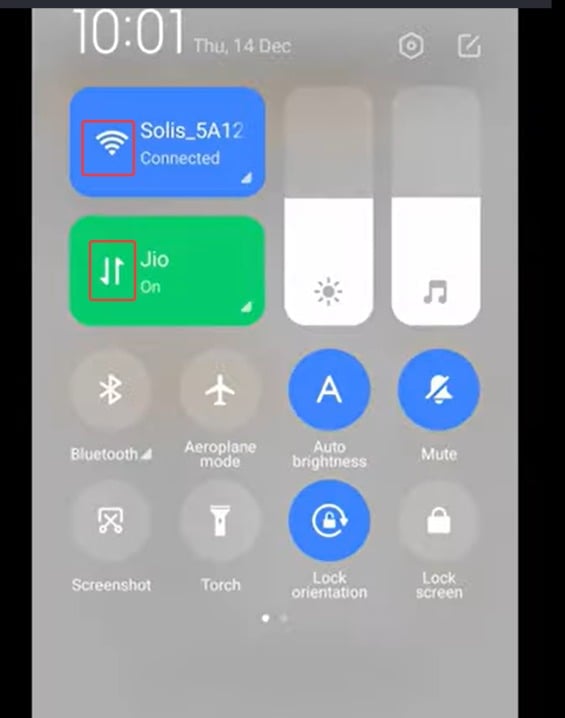
On some phones, even after connecting to the WiFi stick hotspot, the device may automatically switch back to mobile data because the hotspot itself does not provide internet access.
To fix this 10.10.100.254 WiFi stick connection problem, temporarily turn off mobile data and leave only WiFi enabled. Then wait about 10–30 seconds before reopening the browser and trying again.
5. The WiFi stick hotspot is connected, but no IP address was assigned
Sometimes your phone may show that it’s connected to the WiFi stick hotspot, but also display a “No Internet Connection” warning. This is completely normal because the solar inverter WiFi stick only creates a local management network and does not provide internet access.
After connecting to the hotspot, your phone still needs to obtain an IP address from the WiFi stick before the 10.10.100.254 login page can be accessed. You can tap the “!” or “→” icon next to the WiFi network name to check the assigned IP address.
Under normal conditions, the assigned IP address should fall within the 10.10.100.x range, such as 10.10.100.101. If you see an address in this range, it means your phone has successfully connected to the WiFi stick network, and you should now be able to access 10.10.100.254.
If the assigned IP address shows 169.254.x.x or 0.0.0.0, it usually means the device failed to obtain a valid IP address from the WiFi stick, indicating a connection or communication problem.
In this situation, wait 10–30 seconds before refreshing the page. If your phone asks whether to switch to another network, choose to stay connected to the current WiFi network. If the issue still persists, unplug the WiFi stick from the solar inverter, wait about 30 seconds, plug it back in, and then try reconnecting again.