 IP
IP
To check and manage your solar inverter’s real-time power generation data, you need to connect your Solis WiFi stick to your home WiFi network. For first-time setup or when reconfiguring the network, you can access the 10.10.100.254 login page for Solis WiFi stick setup. This is the standard entry point used to configure and fix most Solis WiFi stick setup and connection issues. Follow the steps below to get your device online.
How to Set Up Solis WiFi Stick (10.10.100.254)
1. Plug the Solis WiFi stick into the inverter communication port (S3 models use the COM port and should be tightened; S4 models use the USB port), then power on the system. Wait 30–60 seconds until the PWR light stays solid and the WiFi indicator starts blinking, indicating the device is ready.

2. Turn off mobile data (cellular data) on your phone to prevent automatic switching while connecting to the Solis WiFi stick hotspot.

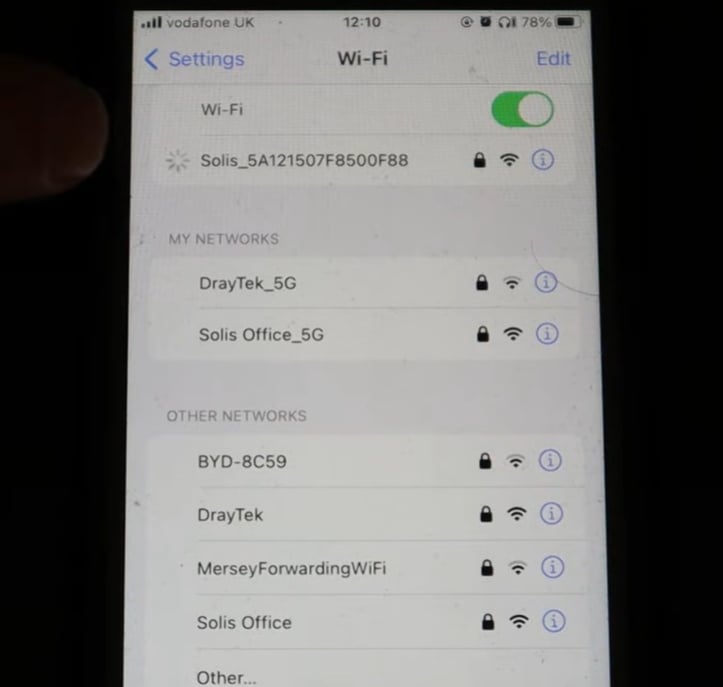
3. Open your phone’s WiFi settings and connect to the hotspot named Solis_xxx or D_xxx. Enter the default password 123456789. The “xxx” represents part of the device serial number and varies per unit.
After connecting, your phone may show a “No Internet Connection” warning. This is normal because the WiFi stick is only used for local setup and does not provide internet access. If you cannot find the hotspot, check whether the WiFi stick is properly inserted and the PWR light is solid.
4. Open a browser (Chrome, Safari, or your phone’s default browser). In the address bar, enter 10.10.100.254 and tap Go to access the login page.
Important: Always enter 10.10.100.254 in the browser address bar, not in a search engine. Otherwise, you will not be able to open the web login page.

5. On the login page, enter the username admin. For older firmware, the default password is 123456789. Newer versions require you to create a new password during first login. Use a 6–15 character password combining letters and numbers (for example, Solis123), then log in again.

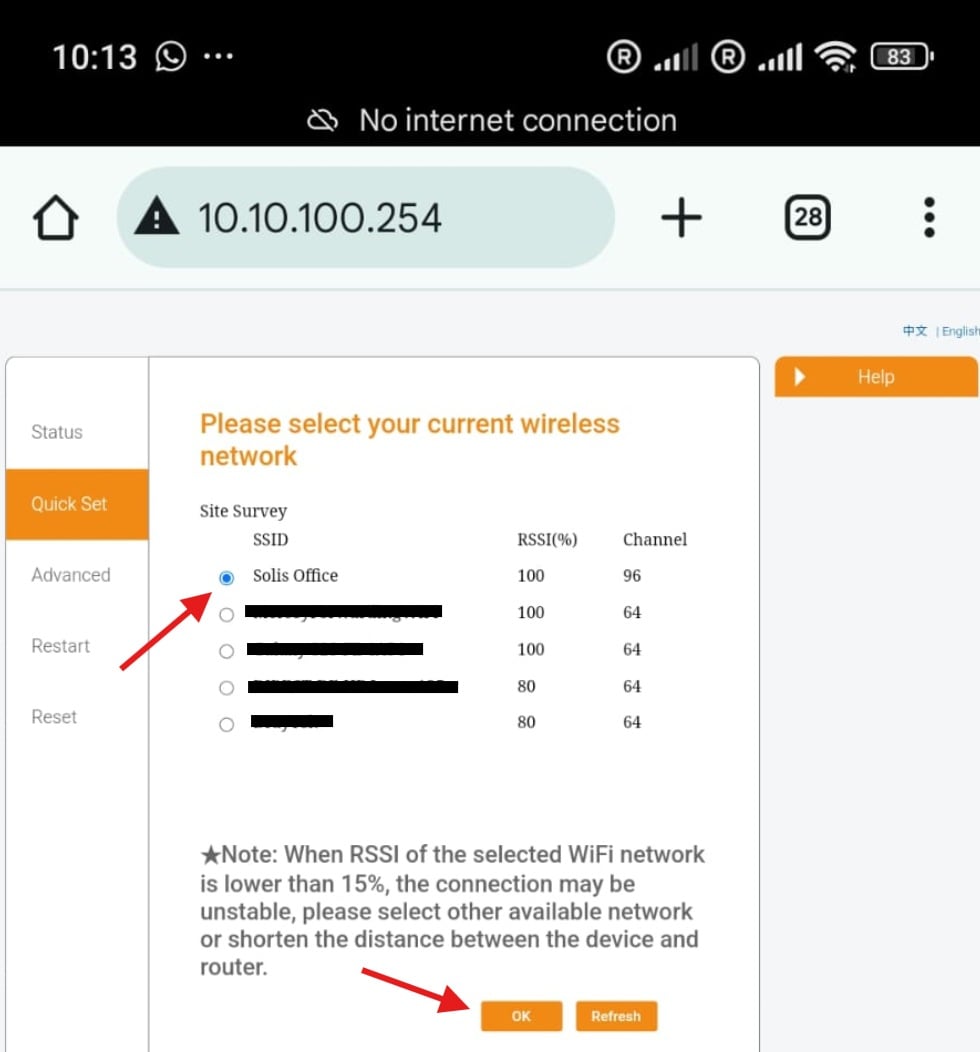
6. After entering the dashboard, tap Quick Set, then select Search. The system will scan for nearby WiFi networks automatically.

7. Select your home router’s 2.4GHz WiFi network from the list. Make sure the RSSI is above 30%, as most Solis WiFi sticks only support 2.4GHz networks and do not support 5GHz.
8. Enter your WiFi password, keep “Obtain IP automatically” enabled, then click Save to complete the setup.
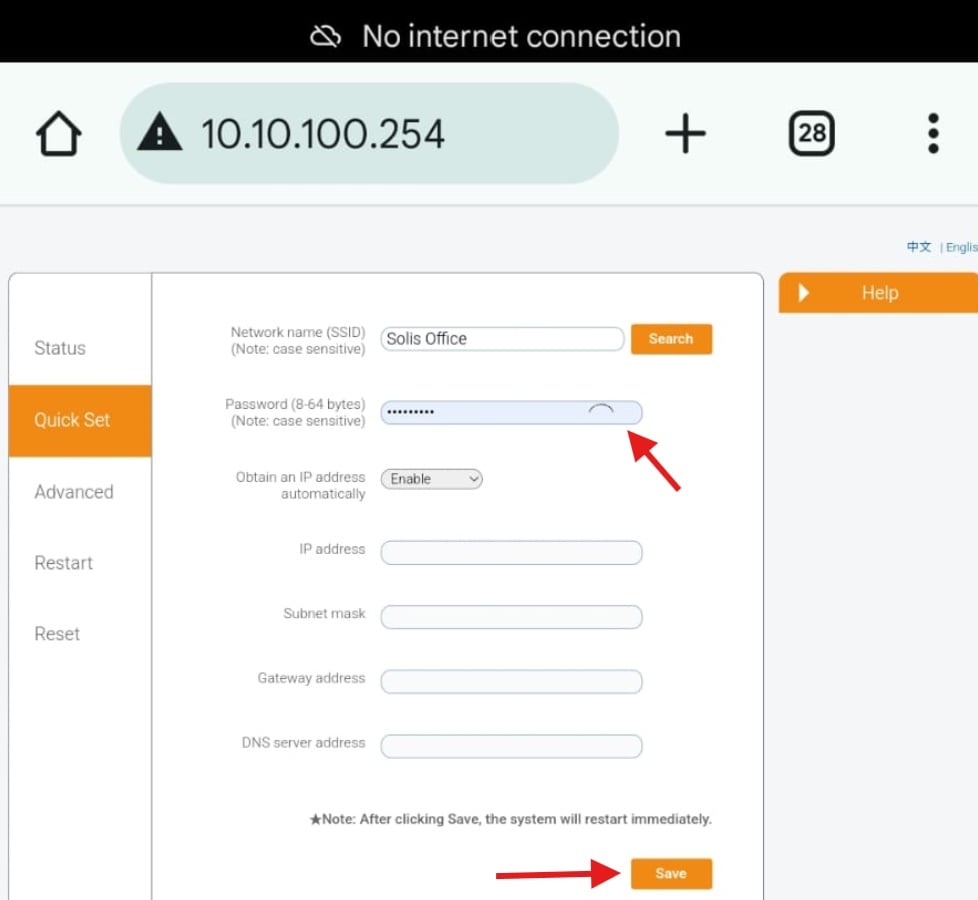
9. After saving, the Solis WiFi stick will reboot automatically and connect to your home WiFi network. Wait about one minute. When the NET light stays solid green, the inverter is successfully connected to the internet. You can now open the SolisCloud app to view real-time power generation data and device status.


