 IP
IP
Most modern TP-Link dual-band routers support both 2.4GHz and 5GHz Wi-Fi bands. On many models, the Smart Connect feature is enabled by default, combining both bands into a single Wi-Fi network name (SSID). Your devices will automatically connect to the best available band for optimal performance.
If you prefer to manually control each band, or want to set different Wi-Fi names and passwords for 2.4GHz and 5GHz, you can disable Smart Connect.
How to Enable or Disable Smart Connect on TP-Link Router
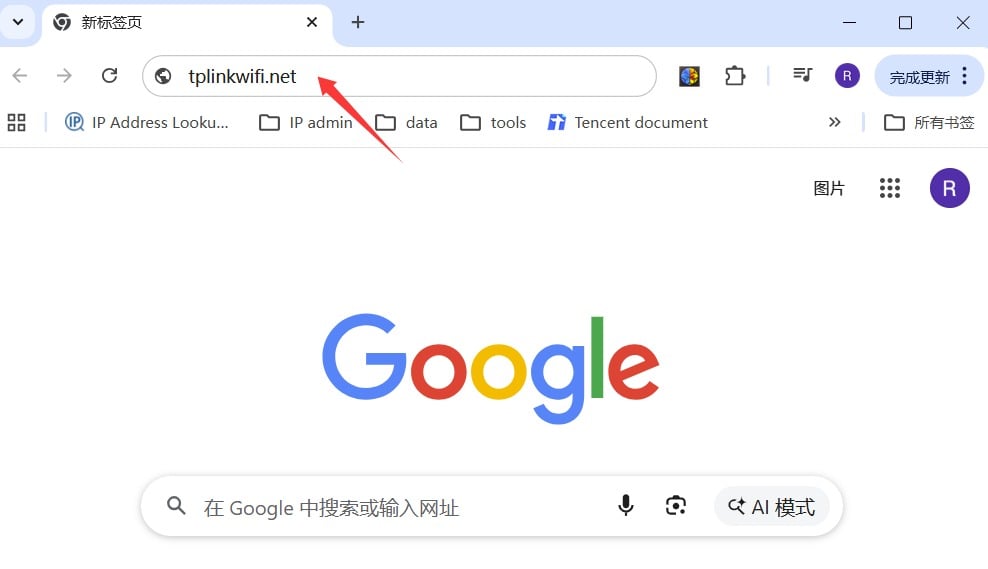
1. Open a browser and enter http://tplinkwifi.net or 192.168.1.1 to access the TP-Link login page.
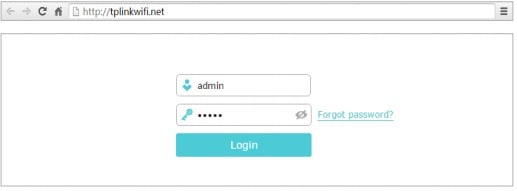
2. Enter your admin password to log in to the router’s web interface.
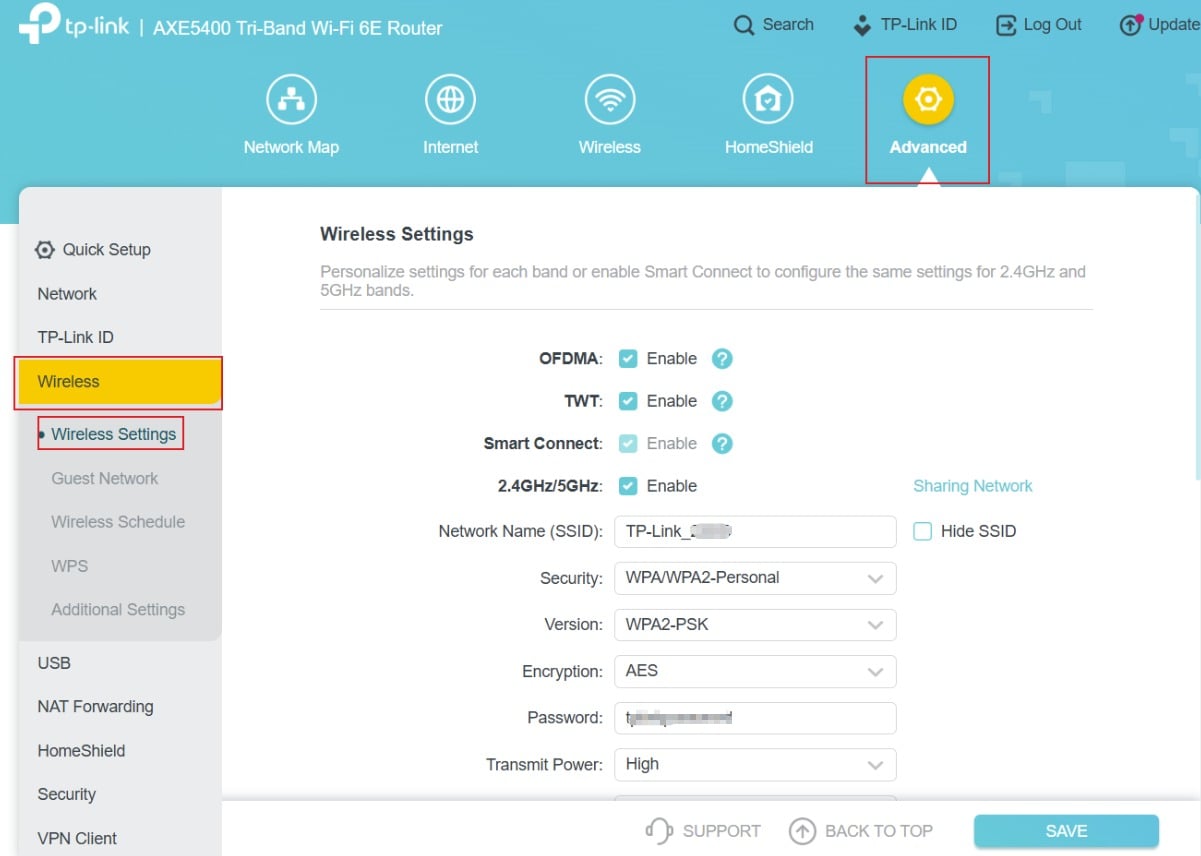
3. After logging in, go to Wireless settings. On most TP-Link routers, you can find this under Advanced > Wireless.

4. Locate the Smart Connect option and choose to enable or disable it:
- Enable Smart Connect: Combines 2.4GHz and 5GHz into one Wi-Fi network. The router automatically assigns the best band.
- Disable Smart Connect: Separates the bands. You will need to set different Wi-Fi names (SSIDs) and passwords for 2.4GHz and 5GHz.
5. Save your settings. The Wi-Fi network may restart. After that, go to your phone or laptop’s Wi-Fi settings to check the result:
- If enabled: you will see only one Wi-Fi network name.
- If disabled: you will see two separate Wi-Fi networks (2.4GHz and 5GHz).


How to connect the router and broadband?
Please connect as follows: After all the above lines are connected, please make sure that the corresponding interface indic
- January 19, 2023
- Information


