IP
IP
After installing a TP-Link Deco at home, you might want to manage your router, change your Wi-Fi name or password, or check connected devices. To do this, you need to log in to the Deco’s web management interface.
192.168.68.1 is the default local IP address for TP-Link Deco routers. Using this address in a web browser, you can access the router’s admin page and manage your network settings.
TP-Link Deco Login Address
The login address may vary depending on the TP-Link router model. Some use 192.168.0.1, 192.168.1.1, or tplinkwifi.net. For Deco models, the default addresses are usually http://192.168.68.1 or http://tplinkdeco.net.
If you have multiple Deco devices at home, they are all managed through this address. When logging in from a phone or computer, the system may sometimes redirect you to the Deco App, but the web interface remains accessible through a browser.

How to Access the TP-Link Deco Admin Page via 192.168.68.1
Step 1: Connect to your TP-Link Deco network
Connect your phone or computer to the Deco network. You can use Wi-Fi or plug your computer directly into the Deco router with an Ethernet cable. If you’re not connected to this network, the address won’t open the login page.
Step 2: Open a web browser
Open any browser on your device, such as Chrome, Edge, or Safari.
Step 3: Access the login page
Type 192.168.68.1 directly into the browser’s address bar and press Enter or Go.
Make sure you enter the numbers correctly without extra spaces or missing symbols. An incorrect address will fail to open the login page.
Common incorrect format:
- 192.168.68.l
- 192.168.681
- 192.168.68
- 192.168.68,1
- 192.168.68.1/
- www.192.168.68.1
- https://www.192.168.68.1
- http//192.168.68.1
Step 4: Log in with your TP-Link ID
Use the TP-Link ID that you set up when configuring your Deco network in the Deco App. If you’ve forgotten the password, you can recover it via the “Forgot Password” link below the login button.
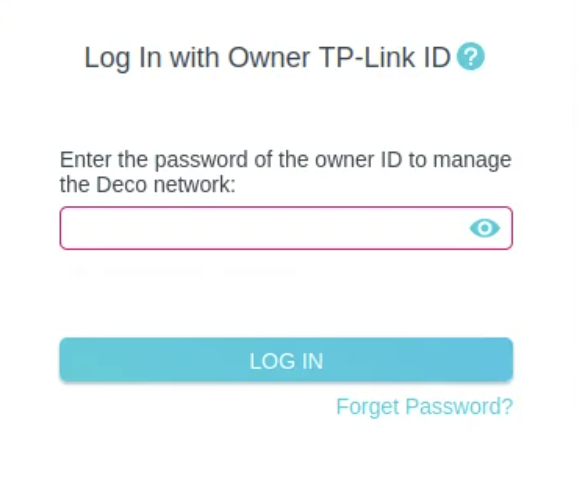
Step 5: Access the admin panel
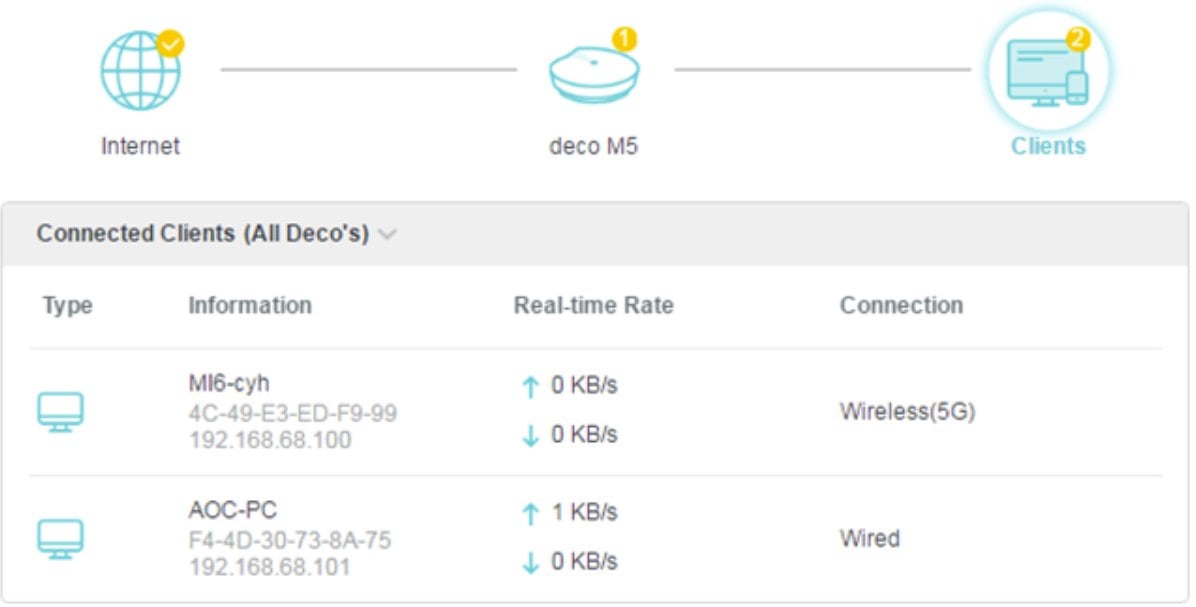
After logging in, you’ll see the admin interface. From here, you can change your Wi-Fi name and password, view connected devices, and check network status. Avoid modifying internet settings or deleting nodes without guidance, as this may disrupt your entire home network.
Viewing network status as below:

Checking connected devices as below: