IP
IP
10.10.0.1 is a local area network (LAN) IP address. It belongs to the 10.0.0.0/8 private IP range as defined by RFC 1918 standards.
Unlike common consumer routers, 10.10.0.1 is rarely the factory-default login for most home router brands. Instead, it is frequently utilized in enterprise networks, campus intranets, or customized network environments as a primary gateway or hardware management entry point.
For standard home networking gear, you are more likely to encounter gateway addresses such as 192.168.1.1, 192.168.0.1, or 192.168.8.1.
How to Access the 10.10.0.1 Login Page
Step 1: First, connect your phone or computer to the same network that uses 10.10.0.1. You can connect via Ethernet cable or join the WiFi provided by the device.
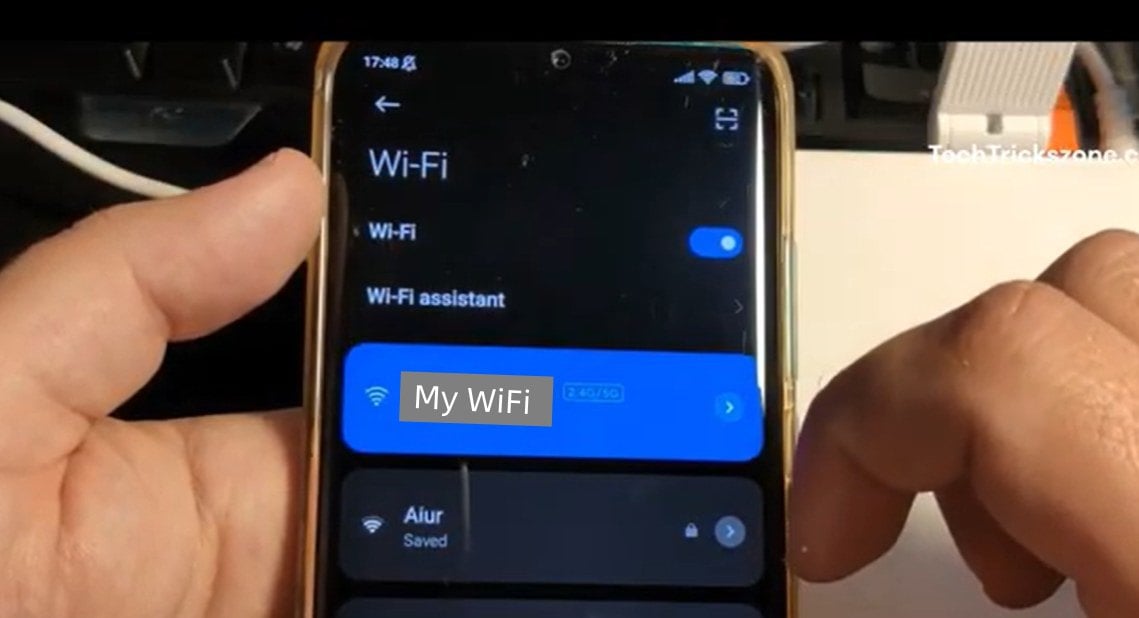
Step 2: Check your device’s current network gateway (on Windows, run ipconfig and look for “Default Gateway”; on a phone, check the “Gateway” field under WiFi details) to confirm it is 10.10.0.1.
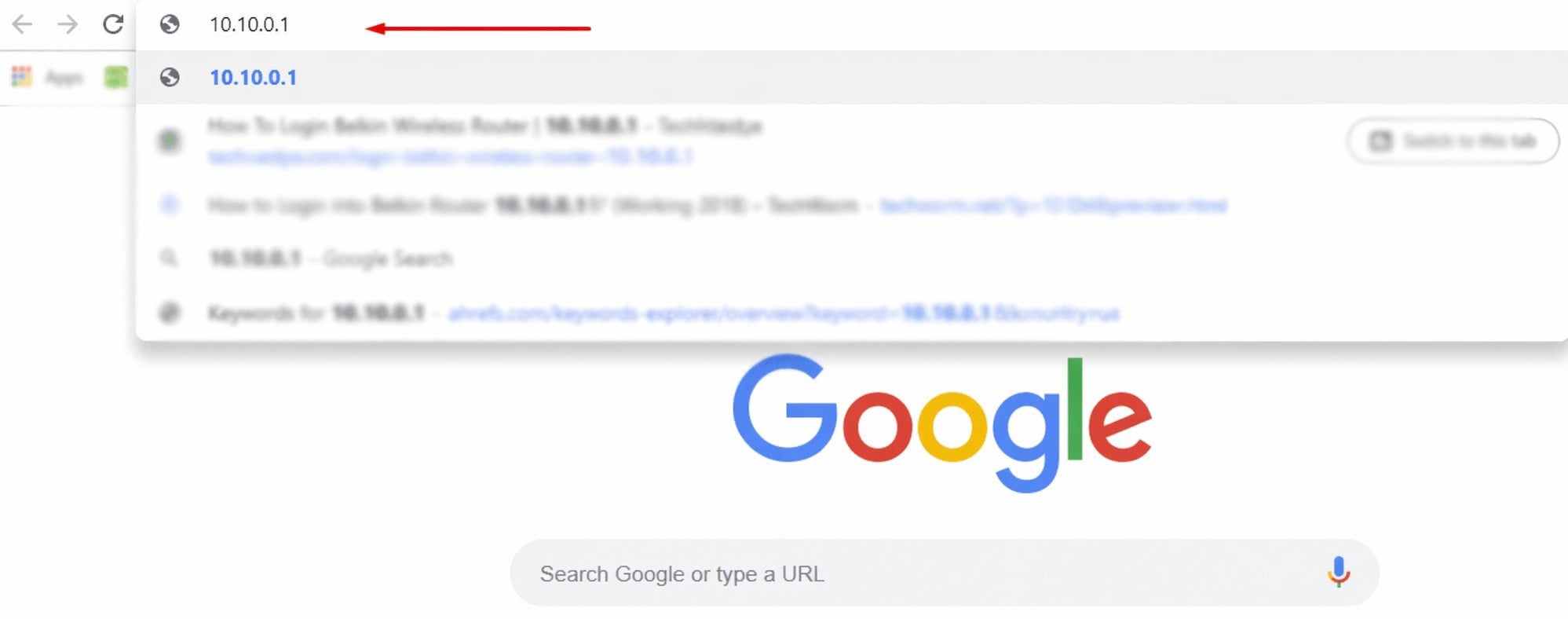
Step 3: Open a browser (Chrome, Edge, Safari, etc.), type 10.10.0.1 in the address bar, and press Enter.
Be careful not to mistype the address or add unnecessary prefixes. Errors like www.10.10.0.1, 10.10.o.1, http://10.10.0.l, http//10.10.0.1, or https://10.10.0.1 can cause the 10.10.0.1 login page unreachable.
Also, make sure you’re entering the address in the browser’s address bar (usually at the top or bottom of the screen), not in a search engine like Google or Bing. Otherwise, it will be treated as a search query instead of visiting the login page.
Step 4: Once the login page loads, enter the administrator username and password to sign in. Enterprise and custom network devices typically don’t use a universal default password. Instead, the login credentials are usually set by the IT administrator during initial setup. If you’re not sure, check the device label or contact your network administrator to avoid repeated failed login attempts that may temporarily restrict access.