 IP
IP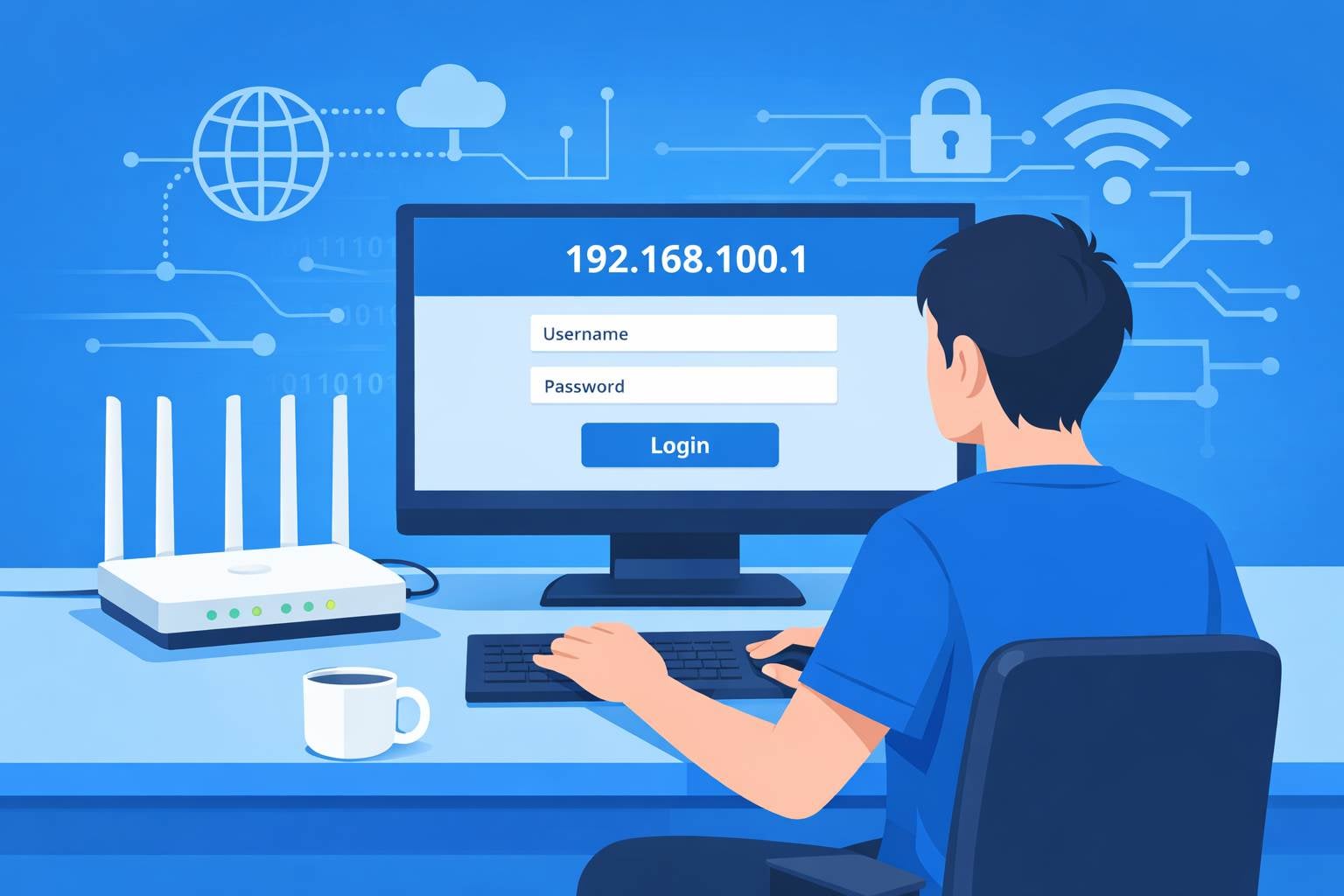
192.168.100.1 is a common admin login address for ISP-provided optical modems (fiber ONTs) and some carrier-branded routers. After logging in, you can check the modem’s operating status, network connection details, and, on certain models, broadband parameters. When you experience no internet connection or need to check the optical signal status, this address is essential for troubleshooting.
Not All Optical Modems Use 192.168.100.1 for Login
The login address of an optical modem is not fixed. Depending on the brand and ISP, the IP address may vary. Common alternatives include 192.168.1.1, 192.168.0.1, or a dedicated domain name such as home.gateway.
Here are two simple ways to find the actual login address for your optical modem:
1. Check the label on the modem
Most optical modems have a label on the bottom or side listing the default access IP, login IP, or web management address. The label usually also shows the default username and password.

2. Check the gateway address on your device
After connecting to the modem’s network, check the “Default Gateway” or “Gateway” value in your device’s network settings. This is typically the modem’s login address.
- Windows: Open Command Prompt, run ipconfig, and check “Default Gateway.”
- Mobile phone: Connect to the modem’s Wi-Fi, open Wi-Fi details, and look for “Router” or “Gateway.”
If 192.168.100.1 does not open the login page, the modem likely uses a different address. Use the methods above to confirm it instead of repeatedly trying random IPs.
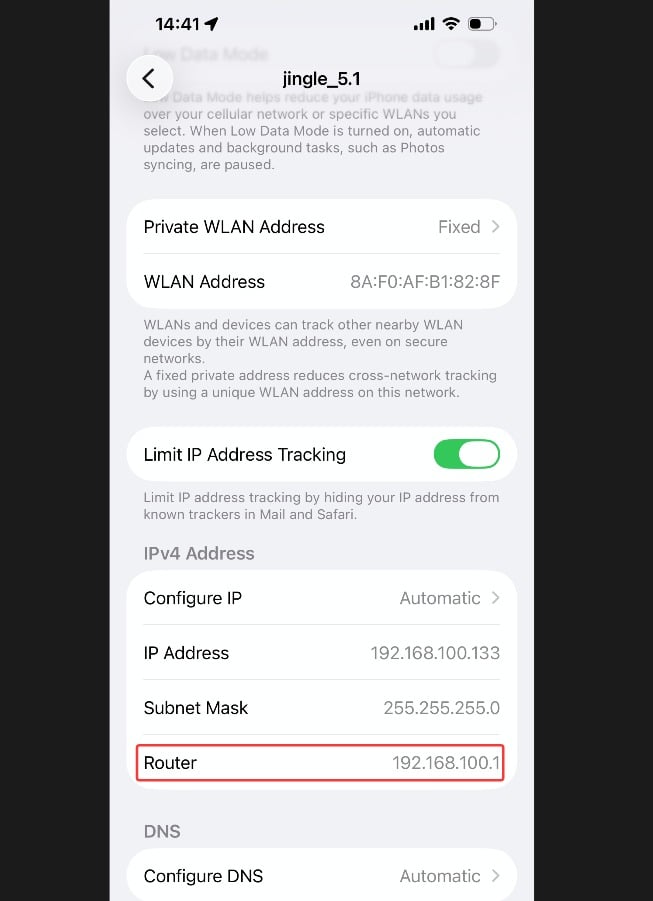
192.168.100.1: Access Your Modem Admin Panel
Step 1: Connect to the optical modem
- Using a computer: Connect an Ethernet cable from a LAN port on the modem (not WAN or fiber) to your computer. A wired connection is the most stable.
- Using a phone: Connect directly to the modem’s Wi-Fi. The SSID and password are printed on the modem label.
Important: You must connect to the optical modem network. Connecting to your home router’s Wi-Fi will not allow access to the modem admin page.
Step 2: Enter the login address in your browser
Open a browser and enter http://192.168.100.1 in the address bar (most modems do not support HTTPS), or use the actual address you found, then press Enter.
Tip: Enter the address in the browser’s address bar, not the search box, and avoid typos such as 192.168.100.l or 192.168.1.100, which may cause the login page to fail to load.
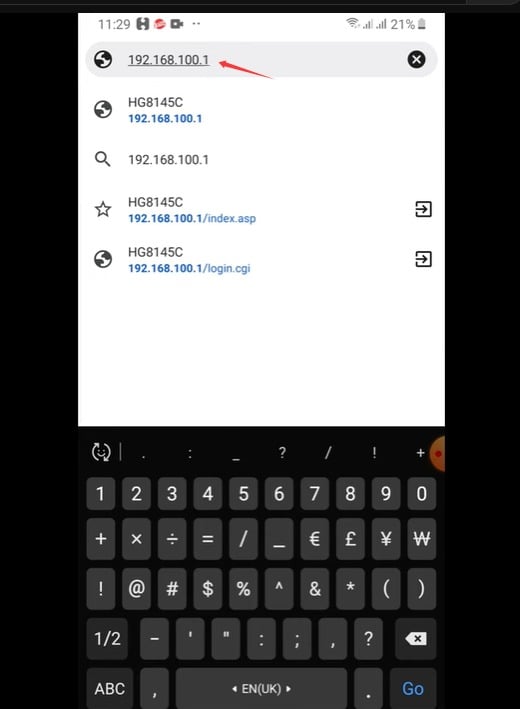
Step 3: Enter the modem username and password
Use the default credentials shown on the modem label, commonly admin / admin or a device-specific password. If the password was changed before, use the updated one.
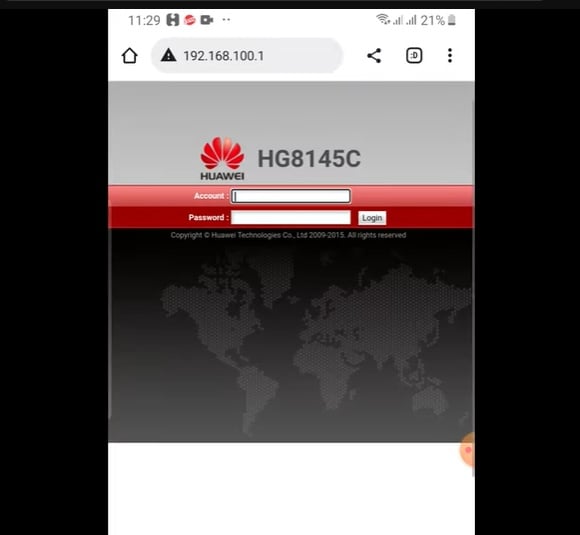
Step 4: Check modem status
After logging in, open pages such as “Status,” “Device Information,” or “Network Status” to check optical signal and connection status.
Important warning: Do not change broadband parameters, remote management, authentication, or VLAN settings unless you know exactly what you are doing. Incorrect changes may immediately disconnect your internet service.


