IP
IP
As smartphones have become the most commonly used devices in our daily lives, more and more people are using them to quickly manage their home router networks. In fact, accessing the router's management page through a smartphone is not complicated and can be done in just a few simple steps. This article provides a detailed guide on how to log in to 192.168.10.1 with one click from your phone, allowing you to easily manage your router settings, such as changing the Wi-Fi password or adjusting network configurations.
Steps to Log in to 192.168.10.1 Using Your Phone
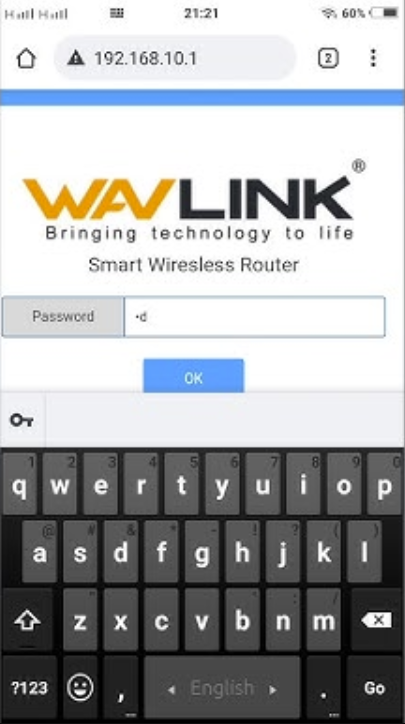
1. Your phone can only access the management interface at 192.168.10.1 if it is connected to the router's network. Therefore, please turn on your phone's Wi-Fi and connect to the Wi-Fi network of the router you wish to manage. If you are using mobile data or connected to another Wi-Fi network, you will not be able to access the router's 192.168.10.1 login page.
2. Launch a web browser on your phone, such as Chrome, Safari, Edge, Baidu, or QQ. There's no need to download any apps; you can log in to 192.168.10.1 directly through your phone's browser.
3. After opening the browser, type 192.168.10.1 directly into the address bar and click "Go" or "Enter." If the IP address is entered correctly, the page will redirect to the router's login interface.
Note: Do not confuse the address bar with the search bar, and do not add "www" or "http://" before the address. In most mobile browsers, the address bar is located at the very top of the page, while the search bar typically appears in the center or bottom of the screen. For instance, in Android browsers (like Huawei, Xiaomi, Samsung, etc.), the address bar is a long input box at the top; in Safari on an iPhone, the address bar is at the very bottom. You must enter 192.168.10.1 in the address bar; otherwise, the system will interpret it as a search query, resulting in an inability to open the 192.168.10.1 login page.
4. Once the login page appears, you will be prompted to enter a username and password. The default credentials for logging into 192.168.10.1 are usually "admin/admin" or "admin/123456." If you’ve changed the password before, enter the custom login credentials you set.
Note:
① The default password is often simple, so it’s recommended to change it as soon as you log in to ensure network security.
② If you fail to log in after multiple attempts, check for case sensitivity errors or consider resetting the router’s username and password.
5. If the password is correct, simply tap the "Login" button, and you will be directed to the router’s management interface. Here, you can view and modify various settings, such as the network name (SSID), password, and device management. You can also check detailed information about the network’s status, including bandwidth usage, connected devices’ MAC addresses, and signal strength. This makes it convenient to monitor your network’s performance and quickly adjust any potential issues.