 IP
IP
The Nighthawk App is the official mobile application from Netgear, designed specifically to manage Netgear router Wi-Fi networks. With the Nighthawk App, you can monitor your router's status, update the Wi-Fi name and password, and manage connected devices directly from your smartphone—eliminating the need to log into the web interface on a computer.
In addition to using the app, Netgear routers can also be managed via a web browser by visiting routerlogin.com or routerlogin.net to access the administration panel.
Compared to traditional web-based management, using the Nighthawk App to change your Wi-Fi password is more intuitive and requires fewer steps. Even first-time users can easily complete their daily network setup without any hassle.
How to Change Wi-Fi Password with Nighthawk App
Step 1: Connect to the Router's Wi-Fi
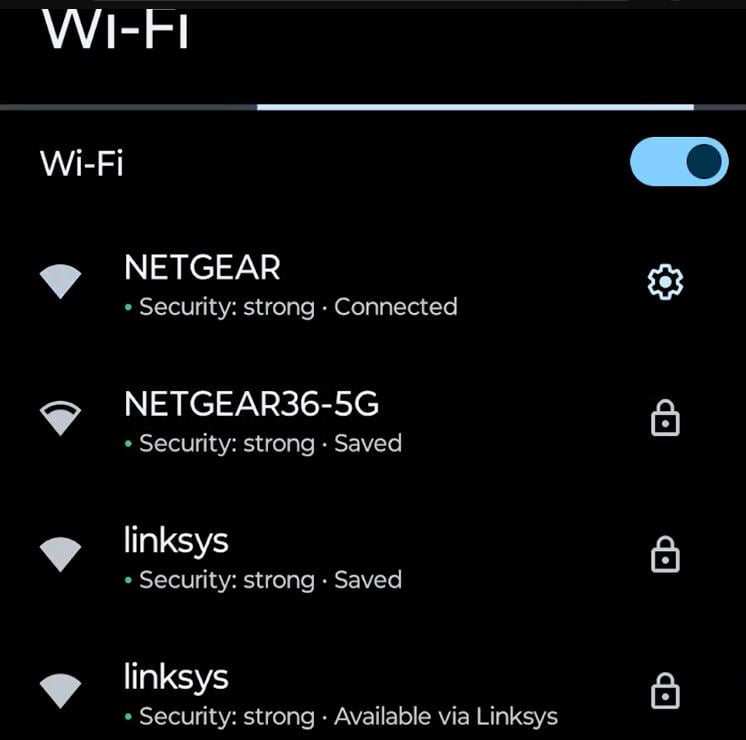
Open the Wi-Fi settings on your phone and connect to the Wi-Fi network of the Netgear router you wish to manage (do not use cellular data). The Nighthawk App can only identify and manage your device if you are connected to the correct local Wi-Fi network.
Step 2: Open the Nighthawk App and Log In
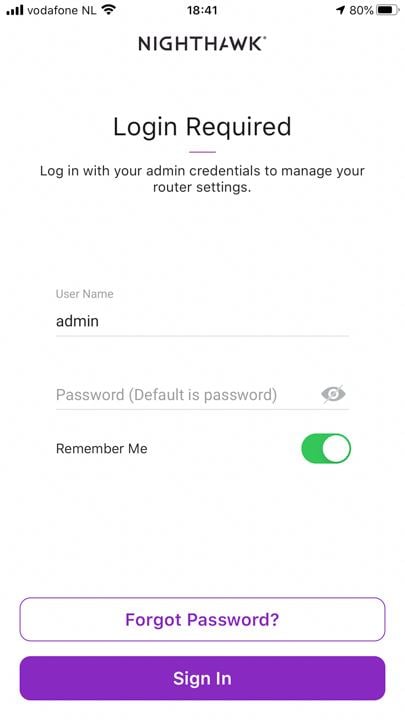
Launch the Nighthawk App. If prompted, enter your MyNETGEAR account credentials. If you don't have an account, follow the prompts to register. Once logged in, the app will automatically detect your Netgear router on the network.
Step 3: Access Wi-Fi Settings
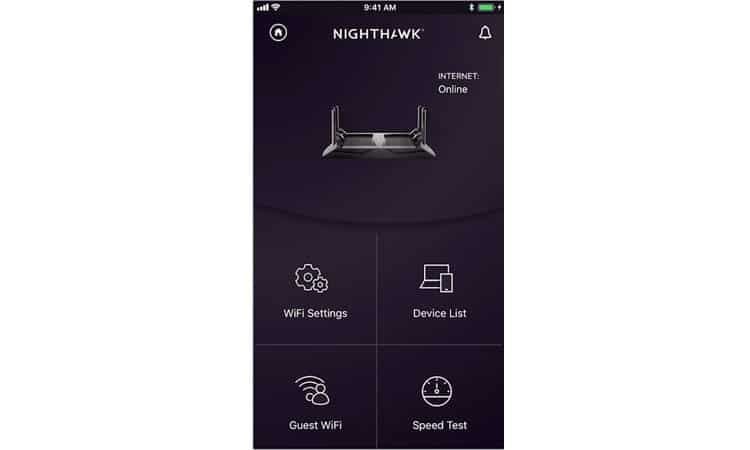
From the Nighthawk App dashboard, find and tap the "Wi-Fi Settings" or "Network Settings" option.
Step 4: Select the Network or Band to Modify
The app will typically list your available bands (e.g., 2.4GHz/5GHz, or Main/Guest network). Tap on the specific network you want to update.
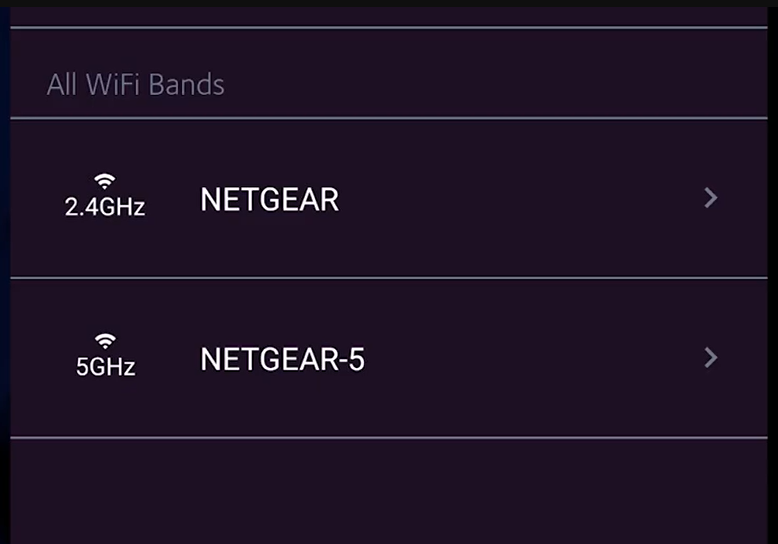
Step 5: Enter New Wi-Fi Details and Save
On this page, you can view your current wireless network name (SSID) and password settings. Simply enter your new Wi-Fi name in the "WiFi Network Name (SSID)" field and your new password in the "Network Key (Password)" field. Once confirmed, tap "Save" to apply the changes immediately—your Wi-Fi name and password are now updated.


