 IP
IP
192.168.6.1 is a private router login IP address, but it is not one of the most commonly used default gateway addresses.
Most router brands (such as TP-Link, NETGEAR, D-Link, and Linksys) typically use 192.168.1.1 or 192.168.0.1, and only rarely use 192.168.6.1.
However, some ISP-provided routers or certain device brands may use 192.168.6.1 as the management address to avoid conflicts with common home network IP ranges. For example, Feiyi routers (Feiyi WiFi) often use 192.168.6.1 as the login address, and some models also allow access through the domain feiyiwifi.com.
192.168.6.1 Admin Login Steps
1. Connect your phone or computer to the router’s network: If you are using a phone, open the WiFi list, select the router’s wireless network (SSID), and enter the password to connect. If you are using a computer, connect an Ethernet cable from your computer to one of the router’s LAN ports, then continue to the next steps.
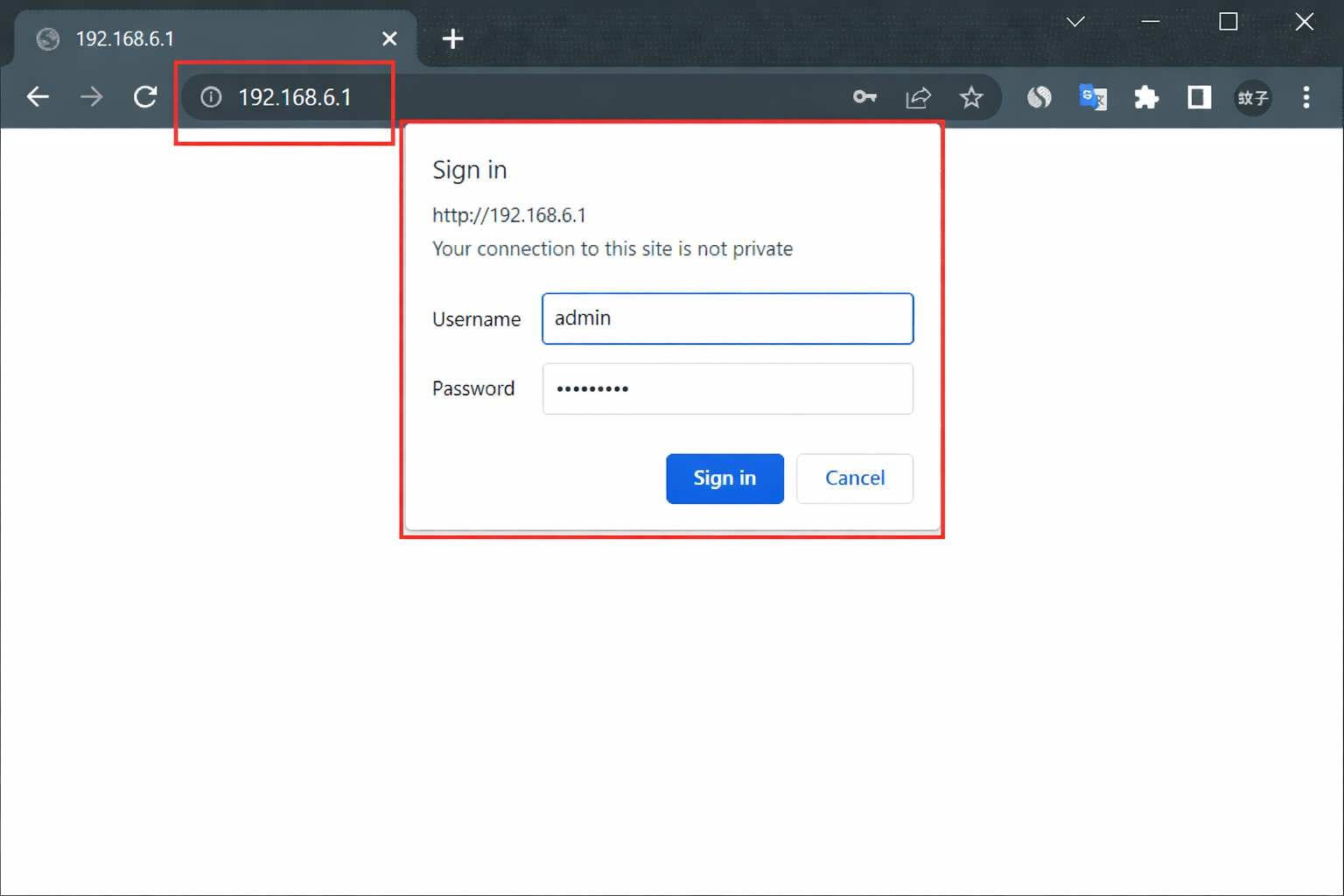
2. Open a browser and enter 192.168.6.1 in the address bar: Use any standard browser and type http://192.168.6.1 in the address bar at the top, then press Enter. Make sure you enter it in the address bar, not the search box.
3. Enter the admin password to log in: On the login page, enter the router’s admin password as prompted. This password is usually created when the router is first set up and is different from the WiFi password. If it has never been changed, check the label on the bottom of the router, or refer to the installation details provided by your ISP for customized devices.
4. Configure settings as needed after logging in: Once logged in, open menus such as “Network Settings” or “Wireless Settings” in the admin panel to change the WiFi name, update the WiFi password, or modify internet connection settings. Save the changes to apply them.


