 IP
IP
192.168.13.1 is the default login IP address used by some wireless routers and range extenders, including certain portable devices from Buffalo Inc. (such as the WMR series). If you want to change your WiFi name or password, or set up repeater mode, you’ll need to access this admin page first.
192.168.13.1 Login Steps
1. Open your phone or computer’s WiFi settings and connect to the device’s default SSID (wireless network name). You’ll usually find the SSID printed on the label on the back of the device, such as Buffalo-A-XXXX or Buffalo-G-XXXX.
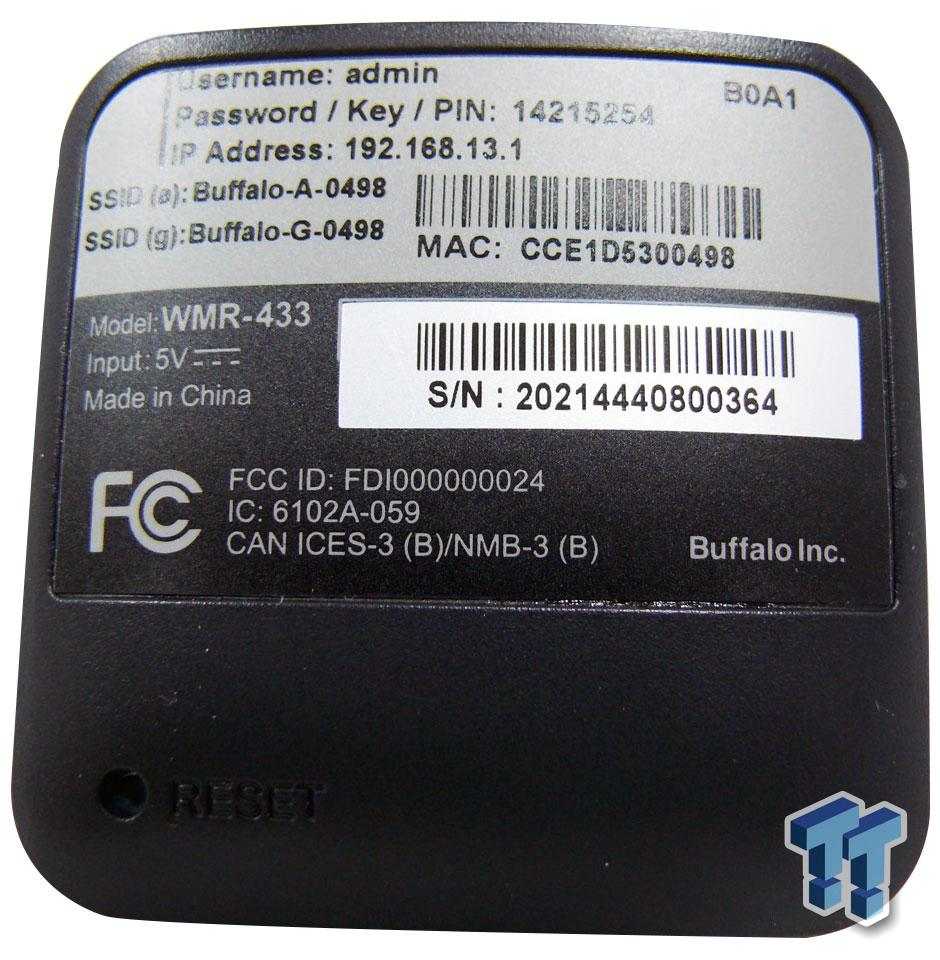
2. Open a browser (Chrome, Safari, Edge, etc.), type 192.168.13.1 into the address bar, and press Enter.
Common typos include: 192.168 13.1, 192 168.13 1, 192 l 168.13.1, 192.168 l 13.1, 192.168 o 13.1, http//192.168.13.1
The correct format is 192.168.13.1 (no “www”, and you usually don’t need to add http://).
Double-check the address before opening it, or the router login page may not load.

3. On the 192.168.13.1 login page, enter your admin username and password to sign in. If this is your first login or you haven’t changed anything before, you can use the default credentials printed on the back label of the device. The username is usually admin, and the password is listed as Password / Key / PIN on the label. See also: Buffalo AirStation Router Admin Login Guide
If you’ve already changed the login password, the default credentials on the label will no longer work, so you’ll need to use your updated password instead.
If you’ve forgotten the password, press and hold the Reset button for about 5–10 seconds to restore factory settings, then log in again using the default credentials.
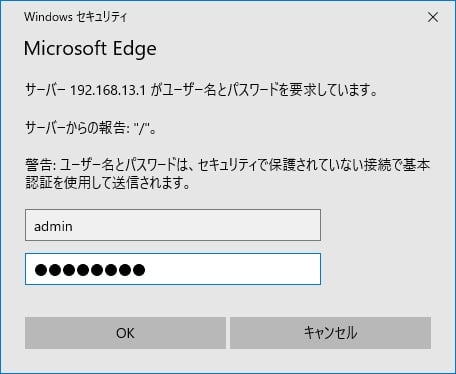
4. Once you’re logged in, you’ll be taken to the router admin dashboard, where you can change your WiFi name and password, or adjust repeater and network settings.


