 IP
IP
10.10.10.10 is a private IP address in the 10.0.0.0/8 range. That said, it’s not a typical default gateway and isn’t commonly used as a standard router login IP. Most home routers use addresses like 192.168.1.1 or 192.168.0.1 instead.
You rarely see 10.10.10.10 used in typical home router admin pages. Instead, it’s more commonly found in specific network setups, such as:
- Gateway or device management IPs in enterprise networks
- Admin interfaces for custom router systems (like OpenWrt or RouterOS)
- Management IPs for wireless access points, extenders, or surveillance devices
In short, 10.10.10.10 isn’t tied to any particular devices—it’s just a configurable local IP that can be assigned as needed.
In some cases (for example, with secondary routers, range extenders, or devices where the LAN IP has been manually changed), 10.10.10.10 may be used as the login address.
How to Access the 10.10.10.10 Settings Page
Before you try to access the admin page, make sure 10.10.10.10 is actually the management IP for your device.
You can check it in your phone’s WiFi settings (network details), or on a computer by running ipconfig and looking for the “Default Gateway.”
If the gateway shows 10.10.10.10, that means it’s the correct login address for your device.
Once you’ve confirmed that, follow these steps:
1. Open a browser (Chrome, Edge, Safari, or any mobile browser), type 10.10.10.10 into the address bar, and press Enter. You can also enter the full address http://10.10.10.10 to make sure it opens as a URL instead of a search.
Double-check the IP before you access the site. Mistakes like 10.10.10.l, 10.10.10.100, http//10.10.10.10, or https 10.10.10.10 may make you unable to access the router login page.
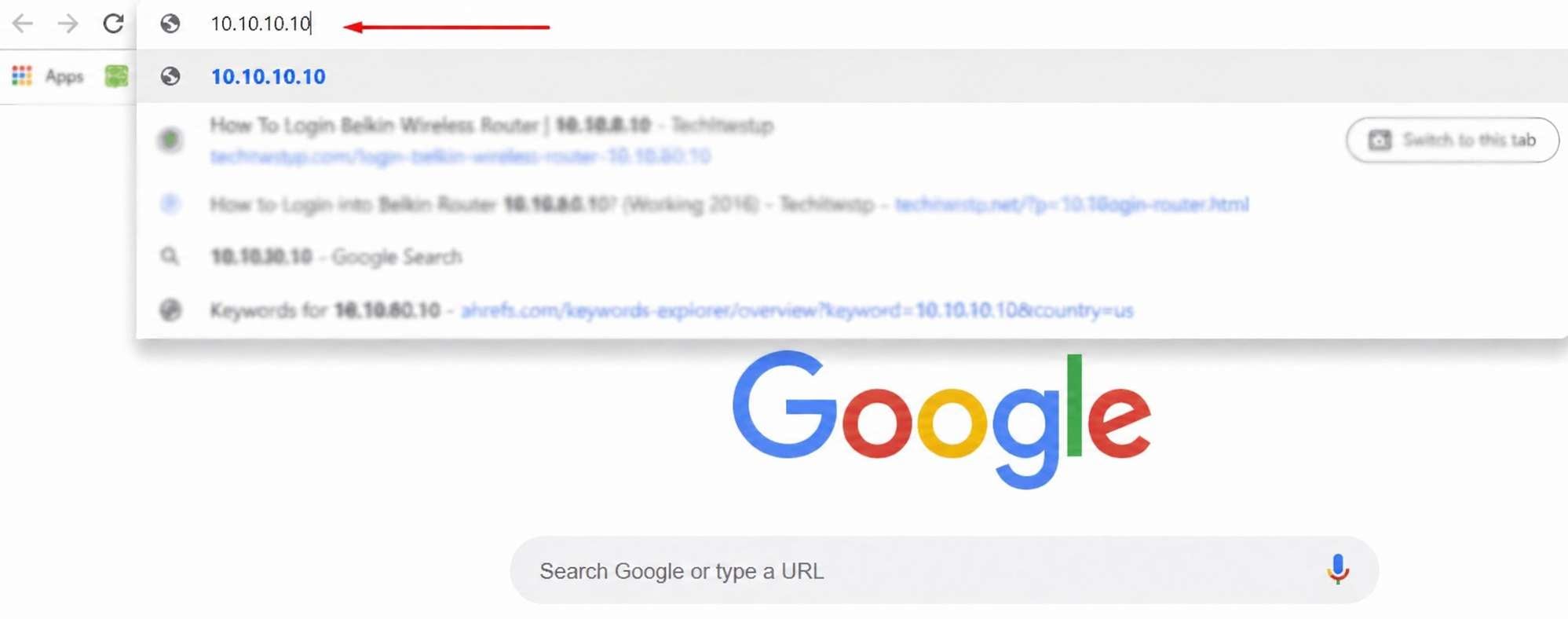
2. When the page loads, you’ll see a login screen. Enter the username and password to sign in.
If the device is new or has been reset, use the default login details printed on the label or in the manual.
For custom router systems (like OpenWrt), the default username is usually root, and the password may be password, admin, or sometimes left blank.
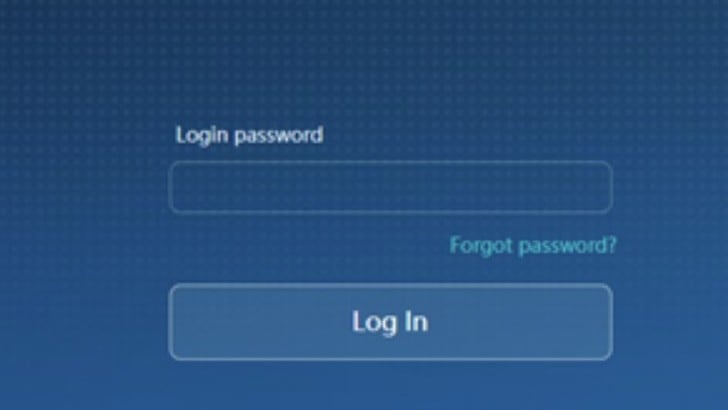
3. After you log in, you’ll be taken to the admin panel, where you can change your WiFi name, update the password, set up your internet connection, and manage other network settings.


