 IP
IP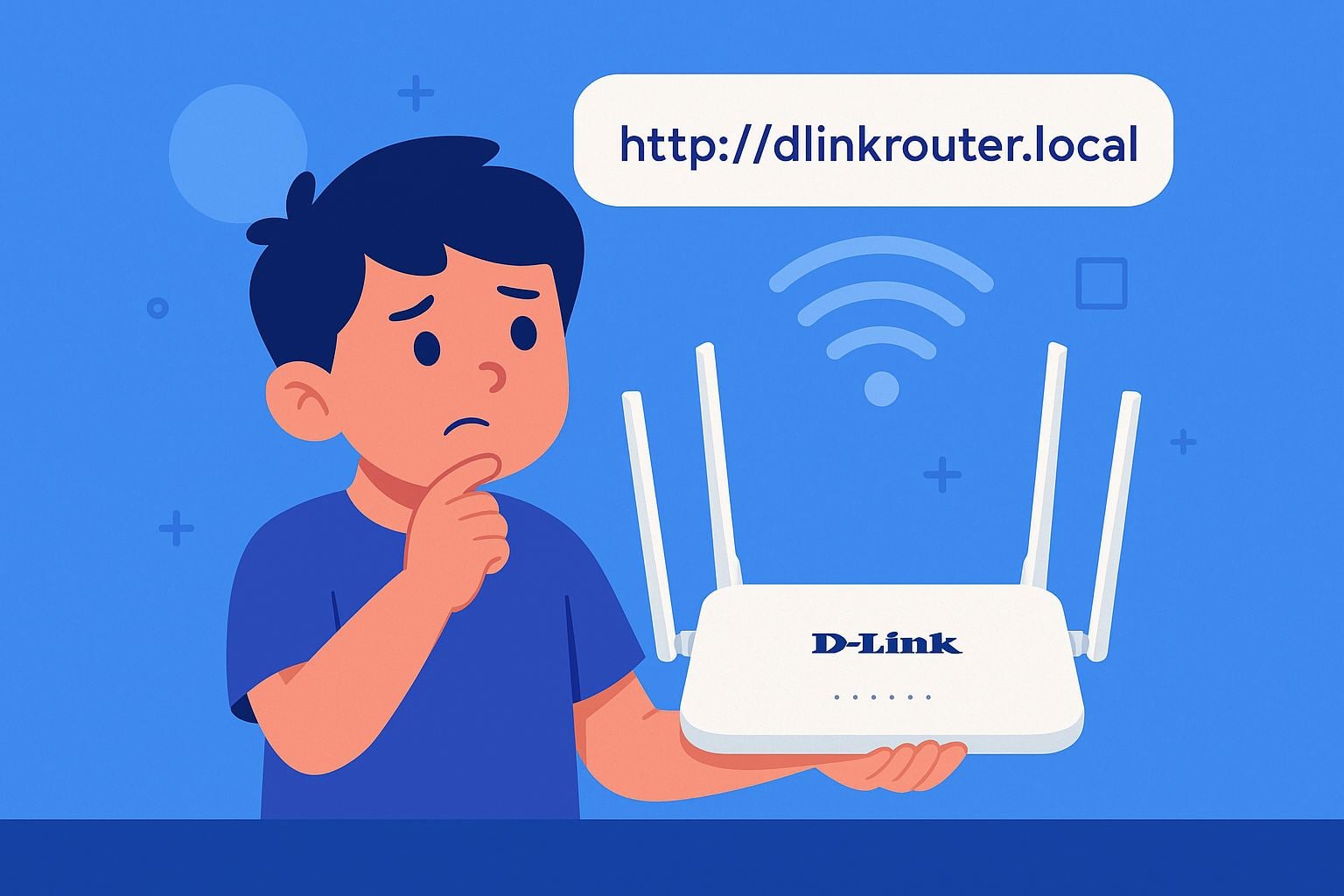
D-Link is one of the most popular home router brands. Whenever you need to change your Wi-Fi password, rename your network, or check connected devices, you’ll need to log in to your router’s admin page. One of the easiest ways to do that is by visiting http://dlinkrouter.local.
What Is http://dlinkrouter.local?
Simply put, http://dlinkrouter.local is a local web address used to access your D-Link router’s login page.
Common login addresses for D-Link routers include:
However, the correct address may vary depending on your router model. For example, models like DIR-518L and DIR-890L can be accessed via http://dlinkrouter.local.
Once you’re logged in, you can manage a variety of settings, such as:
- Changing your Wi-Fi name (SSID);
- Updating your wireless password;
- Managing connected devices;
- Upgrading your router firmware, and more.
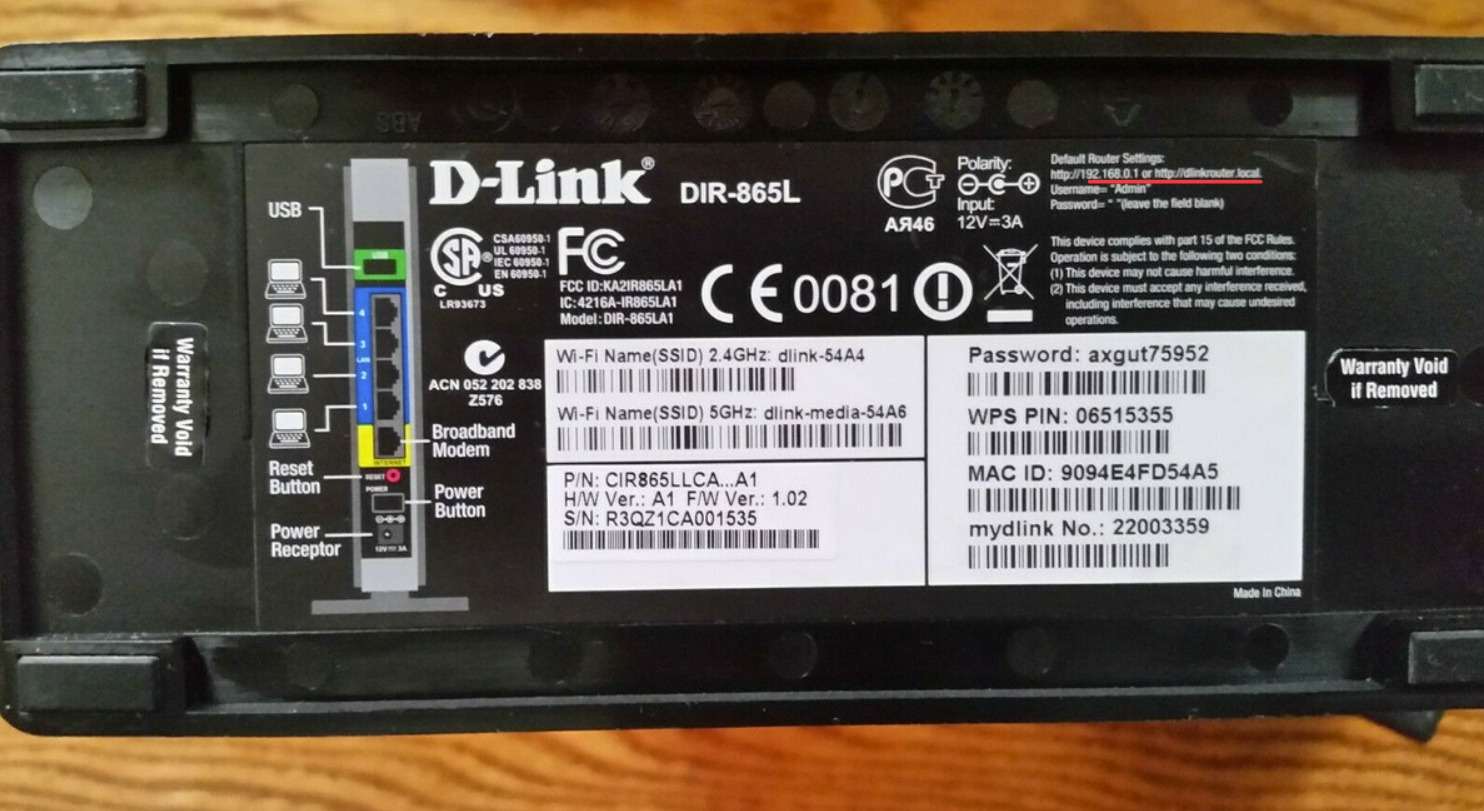
How to Log In to Your D-Link Router via dlinkrouter.local
You can log in using either your phone or computer. Just follow these simple steps:
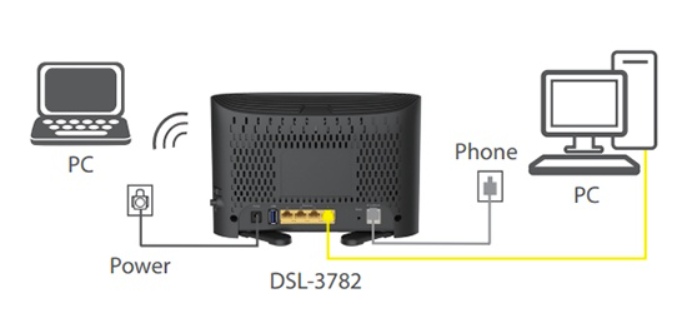
Step 1: Connect to Your D-Link Router
For computer users: Plug one end of the Ethernet cable into one of the yellow LAN ports (1–4) on your router, and the other end into your computer’s LAN port.
For phone users: Open your Wi-Fi settings, find your router’s network name, and connect. (If it’s your first time setting it up, you may not need a password.)
Step 2: Open Your Browser and Enter the Address
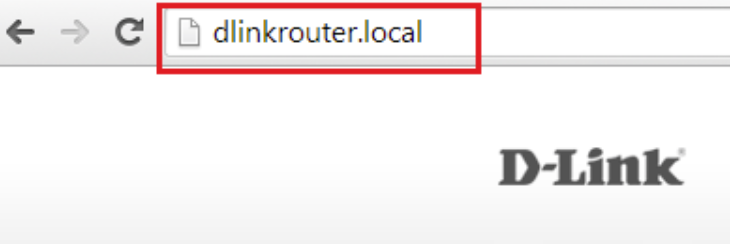
Open your web browser (Chrome, Safari, Edge, Firefox, etc.).
Tap the address bar (not the search box!), type http://dlinkrouter.local, and press Enter or tap “Go.”
Step 3: Log In to the Admin Page
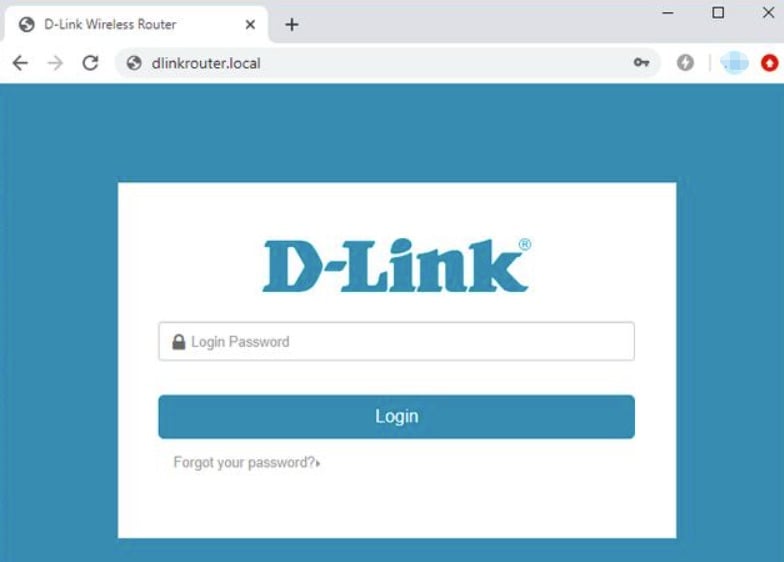
Once the page loads successfully, you’ll see the D-Link login screen.
If this is your first time logging in, you’ll be asked to create an admin password and set your Wi-Fi name and password.
If you’ve logged in before, just enter your existing admin password to continue.
If you’ve forgotten your admin password, look for a “Forgot Password” link on the page. If there isn’t one, you’ll need to reset the router using the Reset button on the back. Learn more here: D-Link Login – Default Password & How to Fix Password Errors


How to Directly Access Router Settings via 192.168.1.1: 2024 Tutorial
How to Directly Access Router Settings via 192.168.1.1: 2024 Tutorial In our daily lives, we may need to change the Wi-Fi password, adjust network settings, or perform other configurations on our rou
- February 28, 2025
- Popular


