 IP
IP
192.168.15.1 is a private IP address used to access a router’s settings interface. Some routers and gateway devices use 192.168.15.1 as their default login address, including models such as Linksys FGW5500, Linksys FGW3000, Linksys RT41-BU, Linksys WRT54GP2, and D-Link DVG-1402S / DVG-G1402S.
192.168.15.1 Login Steps
1. Connect your phone or computer to the router’s WiFi network. You can also connect directly using an Ethernet cable.
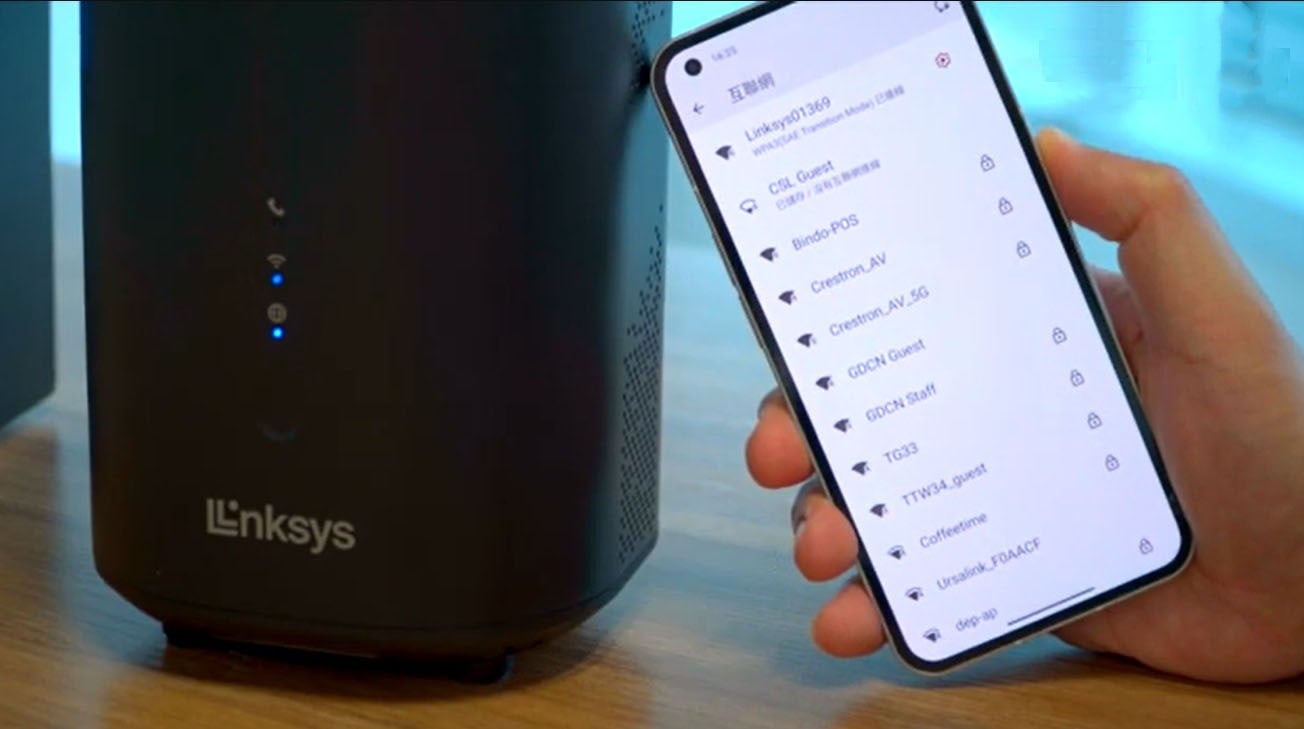
2. Open a web browser. You can use Chrome, Safari, Edge, or any other browser on your device.

3. In the browser’s address bar, enter http://192.168.15.1 or 192.168.15.1, then press Enter.
Note:
- Make sure you enter the address in the browser’s address bar, not the search box. Otherwise, you can't open login page. The address bar is usually at the top of the screen, though on some mobile browsers it may appear at the bottom.
- Enter the IP address correctly. Avoid invalid formats such as 192.168.15.1/, www.192.168.15.1, or http://192.168.1.15.1.

4. When the login page appears, enter the router’s username and password, then click “Login”.
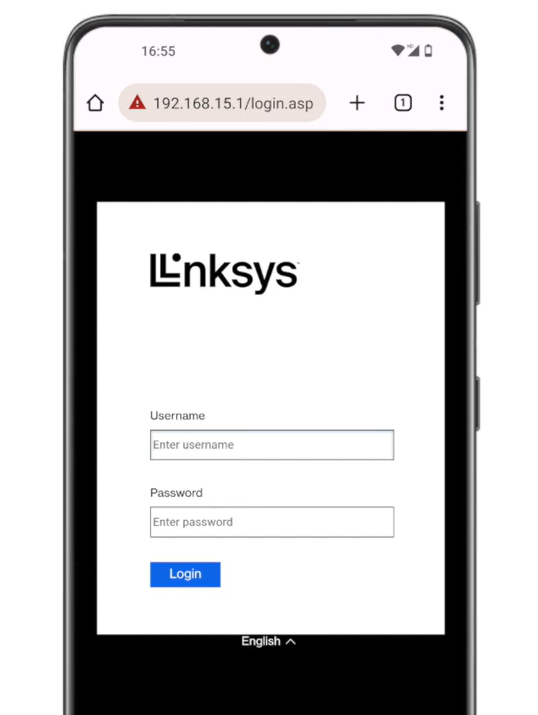
192.168.15.1 Login Password
If you don’t know the router's admin password, or if you enter it and see a wrong password message, you’ll need to use the correct credentials to access the admin panel.
Default Login Credentials
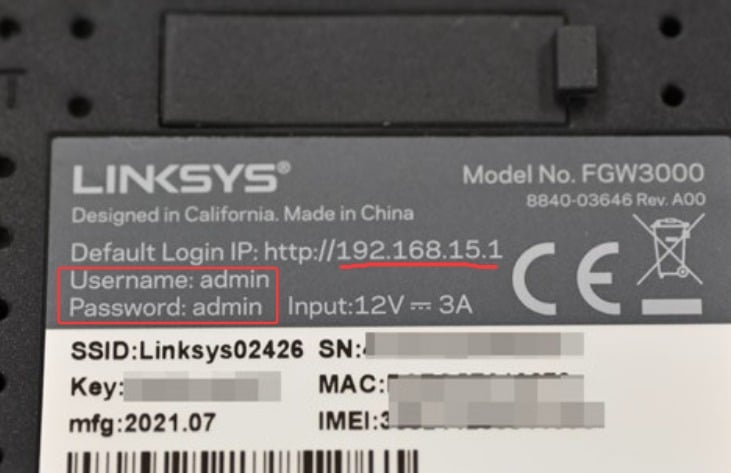
If your router is new or the admin password has never been changed, you can try the default login details, which are usually printed on the label on the bottom of the router.
Common default credentials for Linksys routers:
FGW5500: Username: user, password: check the device label;
FGW3000: Username: admin, password: admin;
Some older models: leave the username blank and use admin as the password.
D-Link DVG-1402S / DVG-G1402S: The default login is typically admin / admin, but always refer to the device label or on-screen instructions.
Forgot the Admin Password?
First, check whether your router offers a password recovery option. Some models allow you to recover the password via email or security questions.
If recovery is not available, you will need to reset the router to factory settings. Keep the router powered on, then press and hold the Reset button with a pin or toothpick for about 5 seconds. Release it when the indicator lights flash, indicating the reset is complete.
After resetting, the login address will still be 192.168.15.1, and the username and password will revert to their default values. You will then need to set up your internet connection again and create a new admin password.


