 IP
IP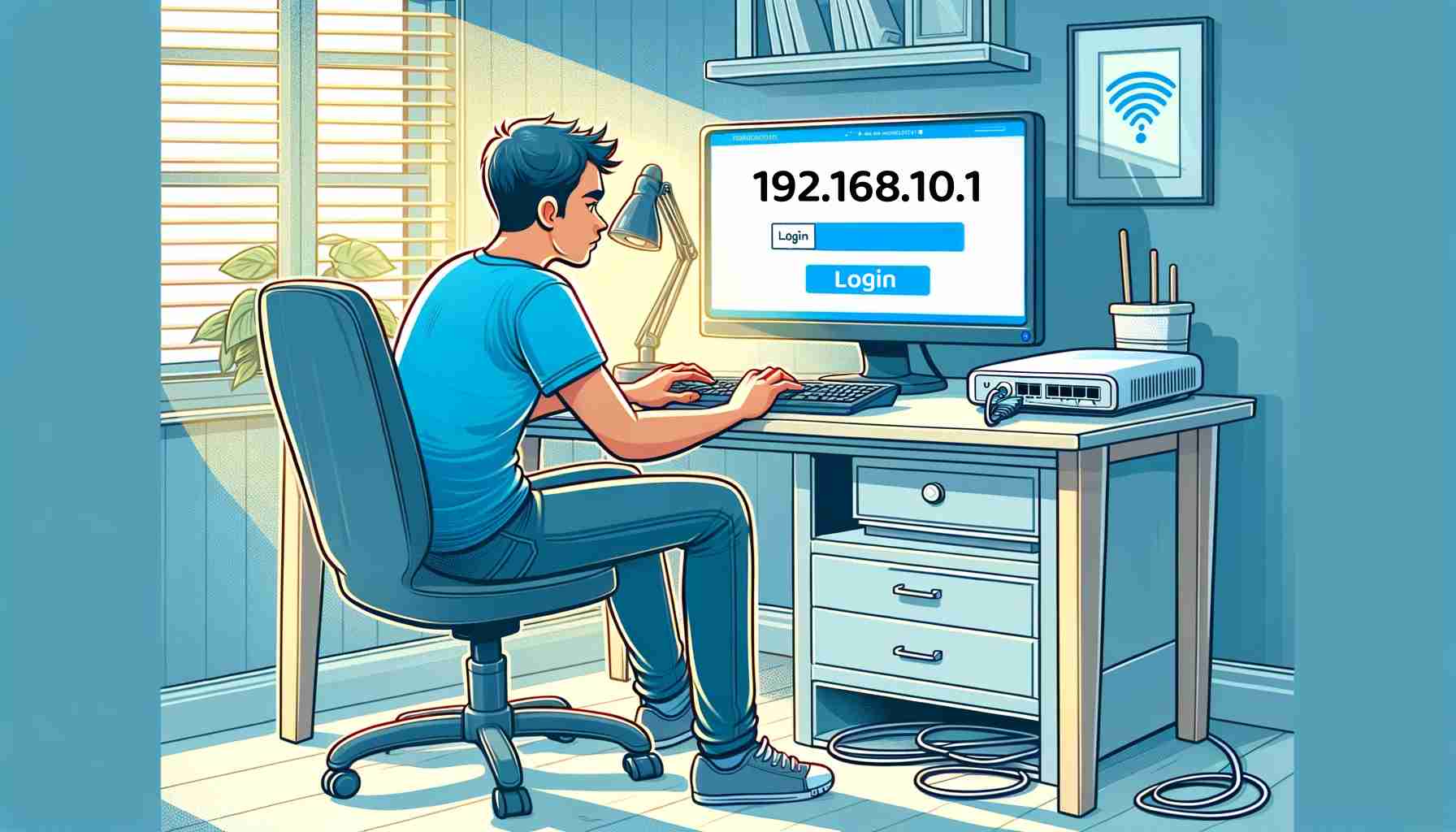
Accessing your router’s admin page is a simple but essential step for managing a home or office network. From the admin panel, you can change your Wi-Fi password, set up a guest network, update firmware, and adjust other security and connectivity settings. 192.168.10.1 is a commonly used private IP address for router login. This guide walks you through the process in three parts: preparation, step-by-step login instructions, and fixes for common issues.
Total Time: Approximately 10 minutes
Supplies & Tools:
- Router
- Computer or smartphone
Before You Start
These quick checks help ensure you can reach the router login page without errors.
- Confirm the router IP address: Verify that your router’s default gateway is 192.168.10.1. You can usually find it on the label underneath the router or in the user manual. Some Netgear, D-Link, and Tenda models use 192.168.10.1 by default, while others may use 192.168.1.1 or 192.168.0.1. List of Default Router Login IPs
- Connect your device to the router: Make sure the device you’re using (computer, tablet, or phone) is connected to the same router—either via Wi-Fi or by plugging an Ethernet cable into a LAN port.
- Check your connection status: Confirm your device shows an active connection to the router’s network. If you’re not connected, the 192.168.10.1 admin page won’t load.

How to Log In to 192.168.10.1
Once you’ve completed the checks above, follow these steps to open the router admin panel.
1. Open a web browser: On your computer or mobile device, open a browser such as Google Chrome, Mozilla Firefox, or Apple Safari.
2. Type the IP address in the address bar: Enter http://192.168.10.1 in the browser’s address bar, then press Enter. Don’t enter it into a search engine box, or you may not be taken to the router login page.
3. Enter your router username and password: When the login screen appears, enter the router’s admin credentials. If you’ve never changed them, try the default username and password listed on the router label or in the user manual. If you’ve changed them before, use your most recently set credentials.
4. Open the admin panel: Click Log in (or the equivalent button). If the credentials are correct, you’ll be taken to the router’s management interface, where you can change Wi-Fi settings, security options, and other configurations.


