 IP
IP
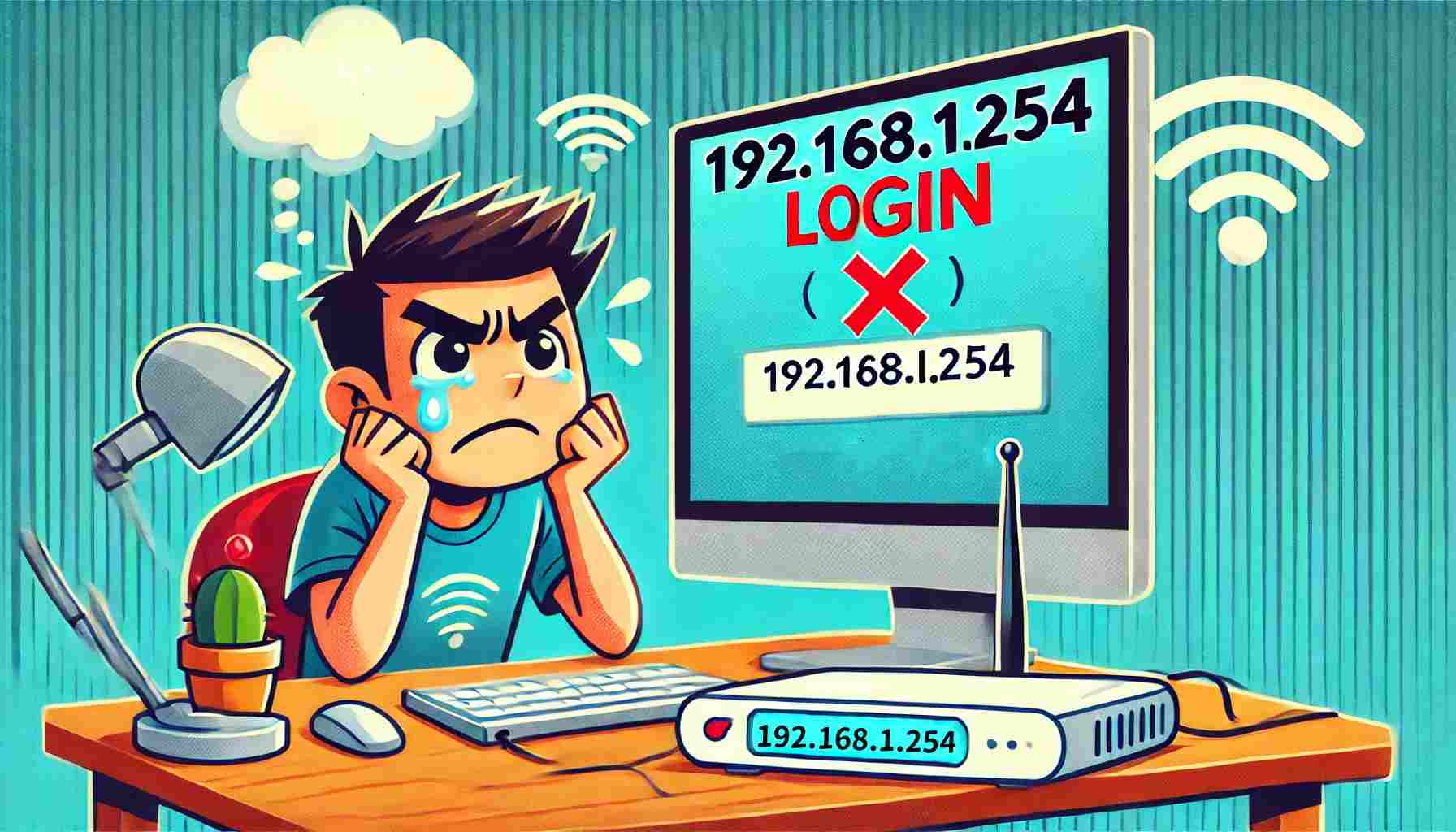
Configuring a new Wi-Fi password is a crucial step in maintaining network security. If you attempt to enter 192.168.l.254 to change the Wi-Fi password, it is evident that, like many users, you have made an error by miswriting the IP address 192.168.1.254 as 192.168.l.254. This seemingly simple mistake can prevent access to the router’s management interface, thus hindering the password change process. Below, we explain how to use the correct IP address, 192.168.1.254, to change the Wi-Fi password.
192.168.l.254 Login to Router Failed
Apart from 192.168.l.254 not being able to log into the router, there are some other address formats that also cannot open the router login page.
- http //192.168.l.254
- 192.168-l-254
- 192.168 l 254
- www.192.168.1.254
- 192.168.l.254 login
It is also incorrect to include the router brand after the IP address, as it will not load the login page, for example, 192.168.l.254 telmex, 192.168.l.254 AT&T. Please avoid the above mistakes. Next, I will teach you how to use the correct IP address 192.168.1.254 to change the Wi-Fi password.
192.168.1.254 Login to Router & Configure New Wi-Fi Password
Step 1: Connect to the router.
You can use a computer or mobile phone to connect to the router's Wi-Fi signal, or use a network cable to connect the device to the router's LAN port.
Step 2: Open the router login page.
Open your usual browser (e.g., Chrome, Firefox, Safari, or Edge), enter 192.168.1.254 in the address bar, and press Enter. The page will automatically load, taking you to the router's login page.
Step 3: Enter the username and password.
On the login page, enter your router administrator username and password. If not changed, you can enter the default username and password, commonly admin and admin, or admin and password. If you have changed it but forgotten, you can try resetting the router by holding down the reset button on the router for more than 10 seconds to restore factory settings.
Step 4: Find the Wi-Fi settings option.
Once logged in, you will see the router's management settings interface. The layout of the interface varies depending on the router brand and model. If you want to change the Wi-Fi password, you can find options like "Wireless Settings," "Wi-Fi Settings," or similar in the router management interface. Some routers place Wi-Fi settings under submenus like "Basic Settings" or "Security Settings."
Step 5: Change the Wi-Fi password.
In the Wi-Fi settings page, you can see the current Wi-Fi password. You can enter the new password you want to set in the input box. It is recommended to set a more complex password, including uppercase and lowercase letters, numbers, and special characters to enhance security.
Step 6: Save the settings.
After entering the new password, remember to click the "Save" or "Apply" button to save your changes. Your router may prompt you to restart. After restarting, the new Wi-Fi password will take effect.
Step 7: Reconnect your devices.
Upon this step, you have completed the password change steps. However, all devices connected to the Wi-Fi will be disconnected and need to re-enter the new password to connect. Therefore, you need to select the Wi-Fi network on your devices and enter the new password to connect.


