IP
IP
Routers are core devices in both home and office networks, storing critical settings and sensitive information. To protect your privacy and network security, it’s important to change your router’s login password regularly—just like updating the lock screen password on your phone.
Since 192.168.1.1 is one of the most commonly used default router login IP addresses, this guide uses it as an example to show you how to change your router’s admin password step by step.
Total Time: Approximately 10 minutes
Supply & Tools:
- Router
- Computer or smartphone
192.168.1.1 Router Login Password Change: Step-by-Step Guide
2. Open a web browser. Launch any web browser on your device, such as Chrome, Edge, Firefox, or Safari.
3. Enter the IP address correctly. Type 192.168.1.1 into the browser’s address bar and press Enter. This is the default login IP for most routers—not 192.1681.1. 192.1681.1 can't open the router login page. Be sure to include the dots (.) between each number group.
4. Log in to the router admin panel. Enter the current admin username and password. If you’ve never changed them before, try the default login credentials printed on the router label.
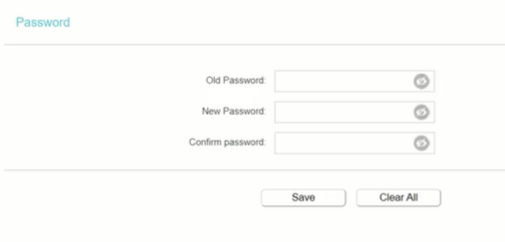
5. Find the password change option. Look for options such as “Change Password,” usually under Administration, Security, or System Settings.
6. Set a new password. Enter and confirm the new admin password. Use a strong password that combines uppercase and lowercase letters, numbers, and special characters.
7. Save the settings. Apply or save the changes. Some routers may require you to log in again for the new password to take effect. Once completed, your router login password has been successfully updated.