 IP
IP
Learn how to access your CNet router using the default IP address 192.168.1.1 and admin credentials. This step‑by‑step guide explains how to make sure your computer is on the same network, find or reset the default username and password, and change your Wi‑Fi password. It also lists popular CNet router models with their login details and provides contact information for CNet support.
How to Log In to the CNet Router?
Logging In from a Computer
- Connect to the Network: First, ensure your computer is connected to the router's local network. You can connect with an Ethernet cable to a LAN port or by joining its Wi-Fi network.
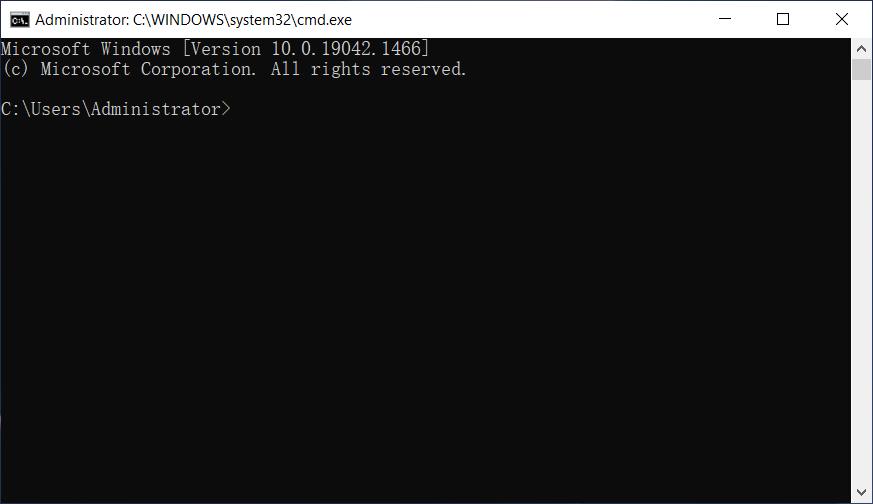
- (Optional) Verify the Connection: To confirm you're connected, you can "ping" the router. Press Win+R on your keyboard, type cmd, and press Enter.
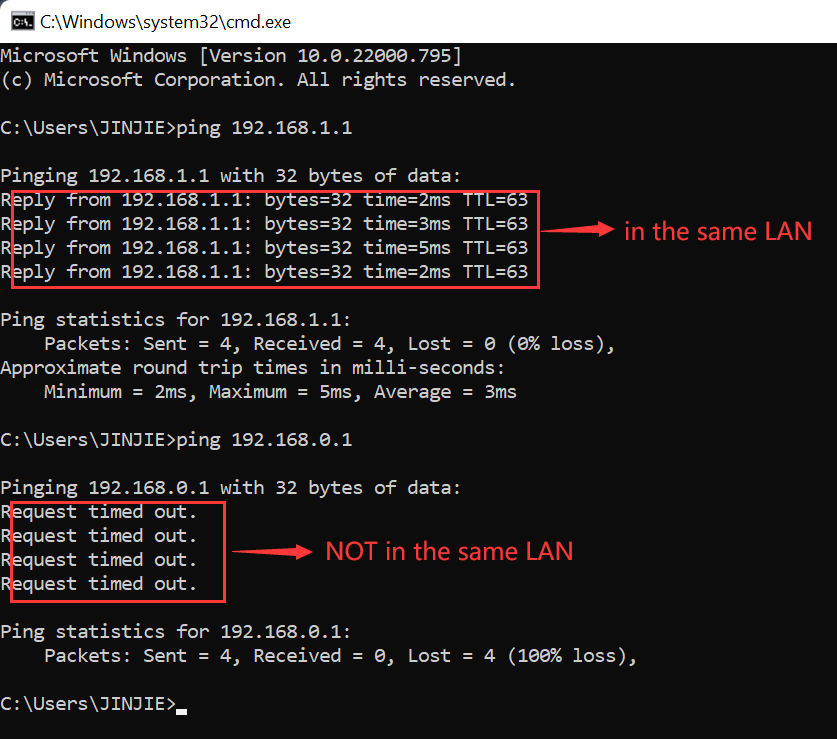
In the new window, type ping 192.168.1.1 and press Enter. If you see replies as shown in the image below, you are connected. If not, please check your physical or Wi-Fi connection. (How to put your device on the same network as the router?)

- Open the Login Page: Open any web browser (like Chrome or Edge) and type 192.168.1.1 into the address bar at the very top, then press Enter.
- Enter Your Credentials: The router's login page will appear. Enter the username and password to access the settings. (How to find your router's password?)
Logging In from a Mobile Phone
- Connect to Wi-Fi: On your phone, go to your Wi-Fi settings and connect to the network of the router you wish to manage.
- Open a Browser: Launch any web browser on your phone (such as Safari or Chrome).
- Go to the Login Page: In the browser's address bar, type 192.168.1.1 and tap 'Go' or 'Enter'. The router's login page should appear.
- Log In: Enter the router's username and password to access its settings.
How to Connect Your Device and the CNet Router to the Same Network?
Connecting Your Devices to the Router's Network
For mobile devices like phones and tablets, simply connect to the Wi-Fi network broadcast by your CNet router.
For a computer, a wired connection is often the most stable. Here’s how to connect your computer to the router's local network using an Ethernet cable:
-
Plug in the Cable
Connect one end of an Ethernet cable to your computer's network port and the other end to any available LAN port on your CNet router. -
Configure Windows 10 for an Automatic IP
Your computer should now be connected. If you have any trouble, you can check that your Windows network settings are correct by following these steps:- Right-click the network icon in your taskbar (usually in the bottom-right corner) and select "Open Network & Internet settings".
- In the window that opens, click "Change adapter options".

- Right-click on your "Ethernet" connection and select "Properties".
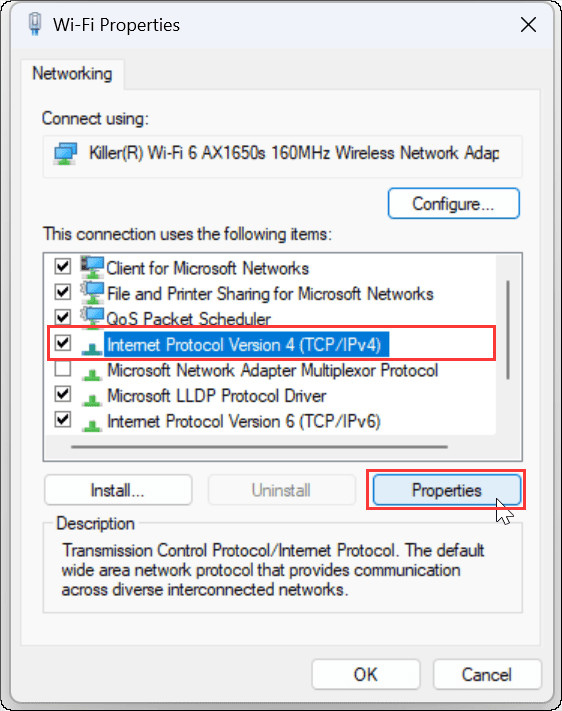
- Select "Internet Protocol Version 4 (TCP/IPv4)" from the list and then click the "Properties" button.
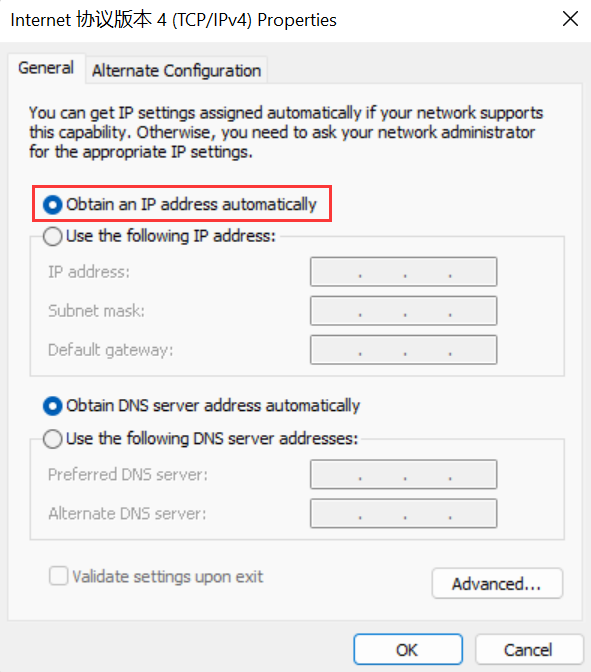
- Ensure that "Obtain an IP address automatically" and "Obtain DNS server address automatically" are both selected, then click "OK".
| Model | Login IP | Username | Password |
|---|---|---|---|
| BR080n | 192.168.1.1 | admin | admin |
| CAR-854 | 192.168.1.1 | admin | admin |
| CAR2-601U | 192.168.1.1 | admin | admin |
| CAR2-604U | 192.168.1.1 | admin | admin |
| CBR-970 | 192.168.1.1 | admin | admin |
| CBR-971 | 192.168.1.1 | admin | admin |
| CBR-980 | 192.168.1.1 | admin | admin |
| CBR-983 | 192.168.1.1 | admin | admin |
| CDR-905 | 192.168.1.1 | admin | admin |
| CMR-982 | 192.168.1.1 | admin | admin |
| CMR-983 | 192.168.1.1 | admin | admin |
| CMR-986 | 192.168.1.1 | admin | admin |
| CNAP-711 | 192.168.0.254 | WLAN | |
| CNWR-811P | 192.168.0.1 | ||
| CNWR-811PA | 192.168.0.1 | - | - |
| CQR-980 | 192.168.1.1 | admin | admin |
| CQR-980 Wireless-N Pico Router | 192.168.1.1 | admin | password |
| CQR-981 | 192.168.1.1 | admin | admin |
| CWR-500 | 192.168.1.1 | ||
| CWR-635M | 192.168.1.1 | admin | admin |


