 IP
IP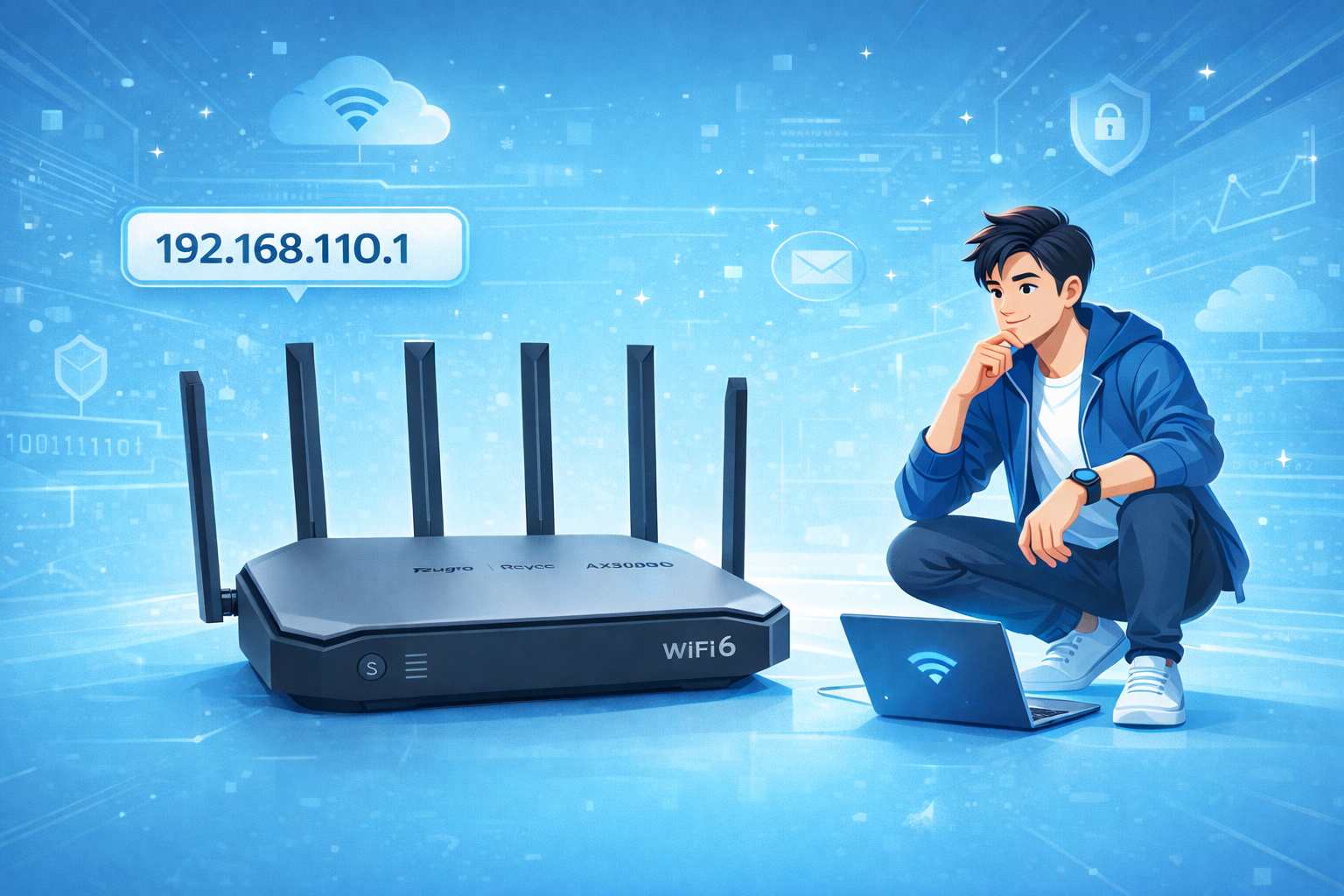
192.168.110.1 is a commonly used login address for Ruijie (Reyee) routers. For example, Ruijie RG-EW series and Star Series WiFi routers use 192.168.110.1 as the admin login gateway. In addition, enterprise-grade devices such as EG series gateways, wireless AC controllers, and some AP devices often use this IP as their management interface to access network settings.
192.168.110.1 Admin Login Step
1. Connect your phone to the Ruijie router’s WiFi, or plug your computer into a LAN port on the router using an Ethernet cable. Without connecting to Ruijie network, you can't access the Ruijie router admin page.
2. Open a web browser on your phone or computer (Chrome, Safari, or any other you preferred browsers). Enter 192.168.110.1 in the browser’s address bar, then press Enter or tap “Go.”
Note: Make sure the IP address is entered in the address bar (usually at the top or bottom of the screen), not in a search box.
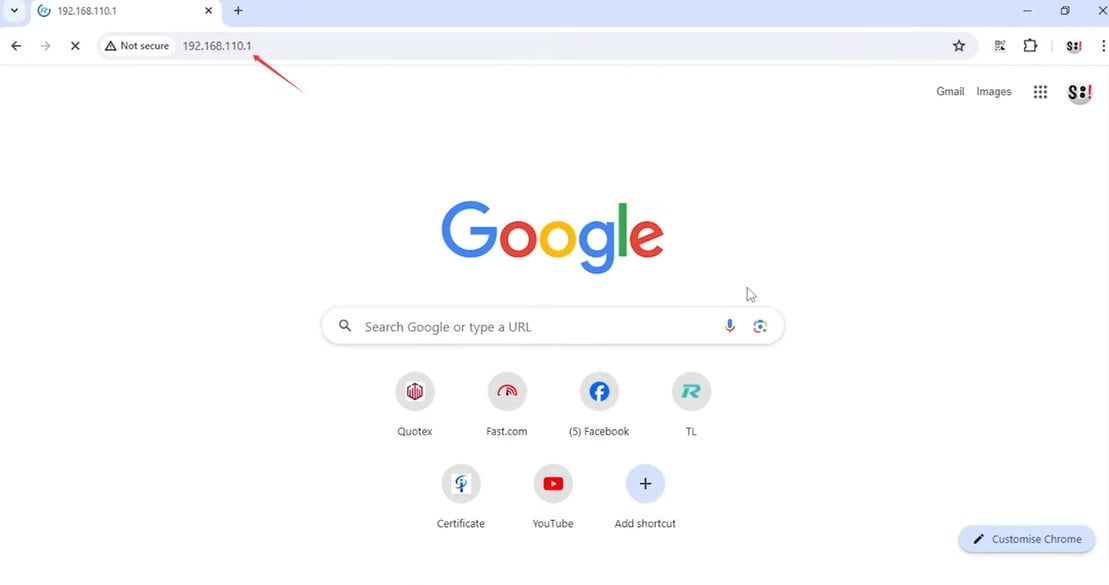
3. Once the page loads, the login page will appear. Enter the correct admin password to log in.
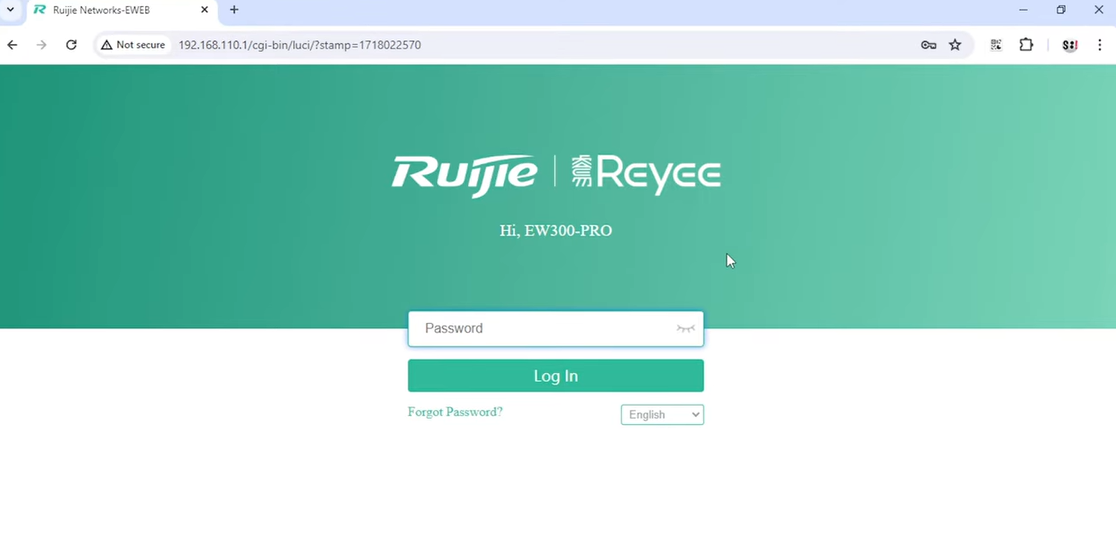
192.168.110.1 Admin Password
For most home Ruijie routers (such as the Reyee series), the login interface is simple: just enter your login password in the password field. This is usually the admin password you created when setting up the router for Internet access the first time, or the default admin password printed on the router’s label.
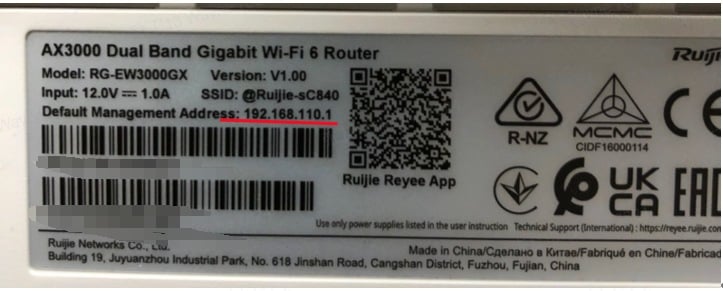
For enterprise-grade APs or older router models, the login interface may include separate fields for username and password. The default credentials are often admin / admin. If you previously changed these, use your custom username and password to log in.
If you’ve forgotten your password, you can try the “Forgot Password” option on the login page. If recovery isn’t possible, you can try the final option: reset the router to factory settings, using the Reset button.


