IP
IP
Ever noticed a Wi-Fi showing up as an “Open Network”? That means anyone can connect without a password. While it might sound convenient, it’s actually risky—open networks have no protection, making your Wi-Fi easy to steal and leaving your personal data exposed.
Right now checking if your Wi-Fi is secured. If not, follow the steps below to add a password and protect your network.
Encrypting Your Router’s Wi-Fi
If you’re using a home or office router, you’ll need to log into the router’s admin panel to set up a Wi-Fi password. A common login address is 192.168.1.1.
Here’s how:
- Make sure the router is powered on and connected to the internet. Then connect your phone or computer to the router’s Wi-Fi.
- Open a browser and type 192.168.1.1 into the address bar (avoid mistakes like http://192.168.1.1.com).
- Enter the router’s admin username and password (often admin/admin by default, or check the label on the router).
- Once inside the dashboard, look for Wireless Settings / WLAN / Wireless Security.
- Set the encryption method to WPA2-PSK or WPA3-PSK, then create a strong password with a mix of letters, numbers, and symbols.
- Save your settings, then restart the router or reconnect to the Wi-Fi.

Encrypting Your Pocket Wi-Fi (MiFi)
If you’re using a portable Wi-Fi device (also called pocket Wi-Fi, MiFi, or a SIM-based hotspot), you’ll also need to log into its admin panel to set a password. The process is very similar to securing a regular router.
Here’s how:
- Connect your phone or laptop to the pocket Wi-Fi network.
- Open a browser and enter the management address printed on the device (commonly 192.168.1.1 or 192.168.0.1).
- Log in with the admin username and password (check the device label or manual).
- Go to Wi-Fi Settings / Wireless Security, select WPA2/WPA3, and set your password.
- Save the changes and restart the device.

Encrypting Your Phone Hotspot
If you’re sharing the internet from your phone (hotspot), you don’t need to log into 192.168.1.1. Instead, you can set up encryption directly from your phone settings.
On Android:
- Open Settings.
- Go to Network & Internet / Connections (names vary by phone).
- Tap Hotspot & Tethering / Portable Hotspot.
- Open hotspot settings and choose WPA2-PSK or WPA3-PSK.
- Create a password with at least 8 characters (letters + numbers recommended).
- Save the settings and turn the hotspot back on. Now devices will need a password to connect.
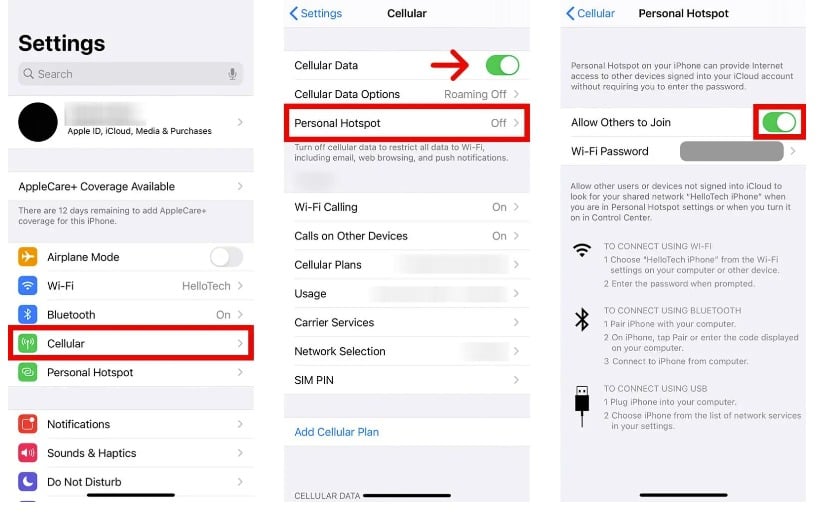
On iPhone
- Open Settings.
- Tap Personal Hotspot (or go to Cellular → Personal Hotspot).
- Find Wi-Fi Password and set a new password (minimum 8 characters).
- Go back and enable Allow Others to Join.
- Other devices will now need to enter the password to connect.