 IP
IP
192.168.0.1 is the default login address for many routers. To configure and manage your router, you need a password to access the admin interface. But what if you forget the 192.168.0.1 password? This article provides solutions to help you recover it.
1. Try to Recover the Password
Before resorting to resetting the router, you can try the following methods to recover the password.
1. Use the Default Username and Password
Many routers come with default usernames and passwords. If you haven’t changed these settings, you can try entering the default credentials. Common combinations include:
- Username: admin
Password: admin - Username: root
Password: password - Username: (blank)
Password: password
These are common login details for many routers. You can also check the label on the bottom or back of your router, which typically includes information such as the default IP address, username, password, Wi-Fi name (SSID), and Wi-Fi password. Click to learn more: 192.168.0.1 Router Admin Default Info
2. Use Passwords Saved in the Browser
If you’ve saved the password in your browser before, you can open the browser’s password manager to check it.
- Chrome: Go to Settings → Autofill and Passwords → Google Password Manager.
- Firefox: Go to Options → Privacy & Security → Saved Logins.
- Edge: Go to Settings → Passwords.
Then search for 192.168.0.1 and check if any login information has been saved.
3. Use the Router’s Password Recovery Feature
If your router supports password recovery, follow these steps:
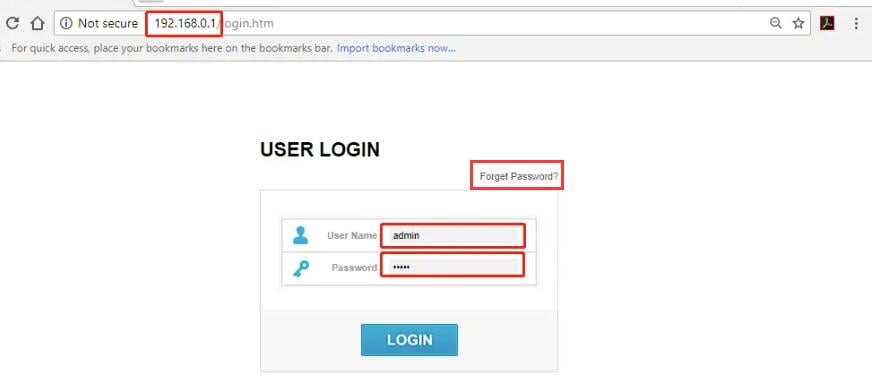
- In your browser, enter http://192.168.0.1 and press Enter.
- Click on the "Forgot Password" or "Password Recovery" option on the login screen.
- Follow the prompts to reset your password, which may involve answering security questions or receiving a reset link via your registered email.
2. Reset the Router to Factory Settings
If you fail to recover the password, the final option is to reset the router. However, this action will erase all custom settings, including the Wi-Fi name and password.
Step-by-step guide:
- Find the Reset Button: Most routers have a small hole or button labeled "Reset" or "RST" on the back or bottom.
- Press and Hold the Reset Button: Use a toothpick, paperclip, or another sharp object to press the reset button for about 10-15 seconds until the router’s indicator lights start flashing or change color.
- Release the Button and Wait for the Router to Restart: Ensure the router remains powered on during the reset and wait for it to fully reboot.


