 IP
IP
In daily life, the router has become the central device for home networking, but many people are unfamiliar with its management operations. Accessing the router's management page is particularly important when you need to change the Wi-Fi password, set up parental controls, or optimize network connections. This tutorial will guide you through the process of accessing the router management system via 192.168.0.1 (if your router's IP is 192.168.0.1) in simple steps, making it easy even for beginners in network operations.
Estimated Time: Approximately 10 minutes
Materials and Tools:
- Router
- Mobile phone or computer
Steps
Step 1: Connect to the Network
First, you need to connect the device you're using (computer or mobile phone) to the router’s network; otherwise, you won’t be able to access the router's management page. You can connect in the following ways:
- Wireless Connection: Enable the Wi-Fi feature on your phone and connect to the router's Wi-Fi network. New routers may not have a password by default. If you’ve previously set a Wi-Fi password, enter that to connect.
- Wired Connection: Connect your computer to the router's LAN port using an Ethernet cable. This method is usually preferable for computers.
Step 2: Open a Web Browser
Open a web browser on your device. You can use Chrome, Firefox, or any other browser on your computer, or Safari, Chrome, Xiaomi Browser, Huawei Browser, etc., on your mobile phone.
Step 3: Enter the IP Address
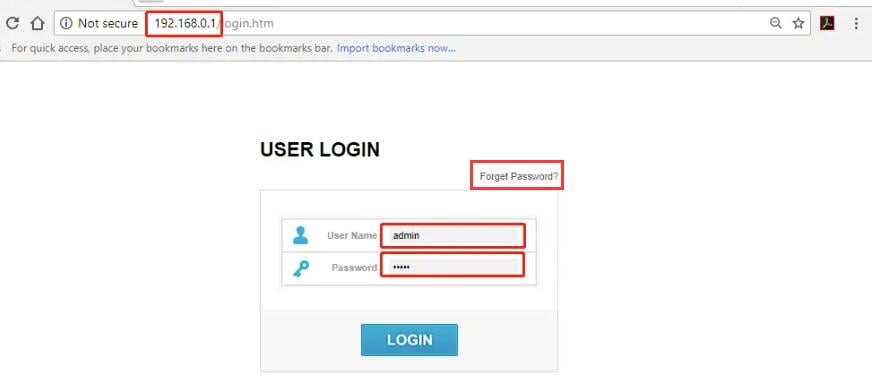
In the browser’s address bar, type http://192.168.0.1 and press Enter (or click “Go”).
Note: Make sure to enter the IP address in the address bar and not the search bar, as doing so may redirect you to a search results page. In most browsers, the address bar is located at the top (or bottom, depending on the device and browser). For example, in Chrome or Firefox on a computer, the address bar is the input box that displays the current webpage address, while in Safari on an iPhone, it is typically located at the bottom of the screen.
Step 4: Enter the Router’s Username and Password
Once you successfully access 192.168.0.1, a login window will pop up. Follow the prompts on the page to enter the router's admin username and password, then click the “Login” button.
Step 5: Access the Router Management Interface
If the password is correct, you will enter the router's management system. On this page, you can make various settings, such as changing the Wi-Fi password, modifying the network name, setting up parental controls, and upgrading the firmware. The interface may vary by router brand, but the main settings options are usually found under “Wireless Settings” or “Wi-Fi Settings,” where you can modify settings according to your needs.

How to Directly Access Router Settings via 192.168.1.1: 2024 Tutorial
How to Directly Access Router Settings via 192.168.1.1: 2024 Tutorial In our daily lives, we may need to change the Wi-Fi password, adjust network settings, or perform other configurations on our rou
- February 28, 2025
- Popular


