 IP
IP
After using a router for some time, many people run into a common problem: they forget the router’s admin password and can’t access the settings page. If you’re using an LB-LINK router, there’s no need to worry. Logging in is actually quite simple—just follow one of the methods below to regain access to your LB-LINK router’s admin panel.
1. Check the Router Label for Default Login Info
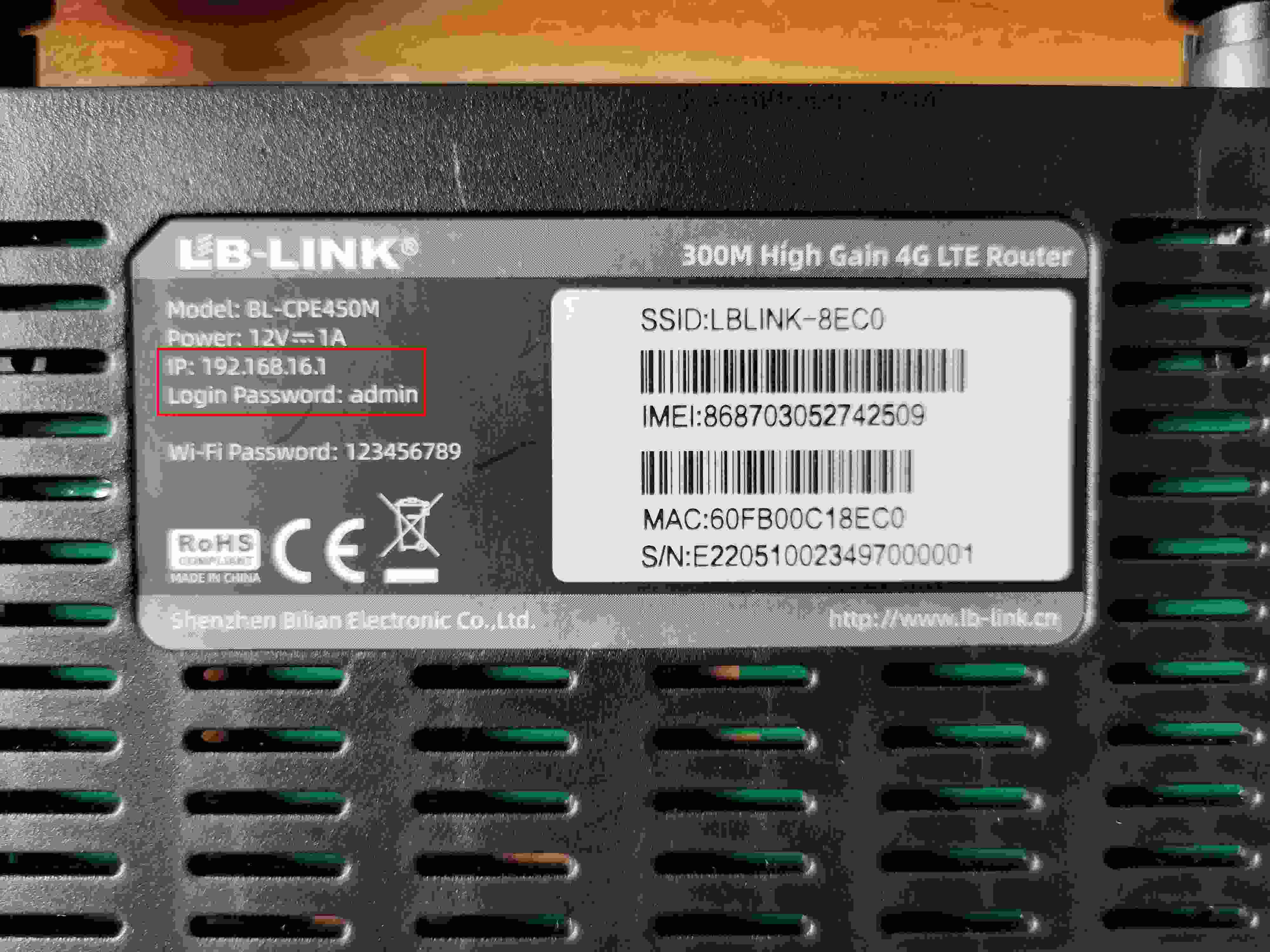
Flip your router over and take a look at the label on the bottom. Most LB-LINK routers have a sticker showing the default login information, for example:
- IP: 192.168.16.1
- Login Password: admin
If the device has never had its admin password changed, you can log in directly using the credentials printed on the label.
2. Forgot Your Password? Reset the Router
If you’ve changed the password but can’t remember it, performing a factory reset is the most effective and universal solution.
How to reset you router?
- Keep the router powered on
- Locate the RESET or WPS button on the router
- Press and hold with a toothpick or pin for about 10 seconds
- Release when the indicator lights flash, indicating the reset is complete
After a factory reset, all previous Wi-Fi names and passwords will be erased. You’ll need to set up the router for internet access. At this point, you can log in using the default username and password from the router’s label.


